Setting Up a Source of Truth
Overview
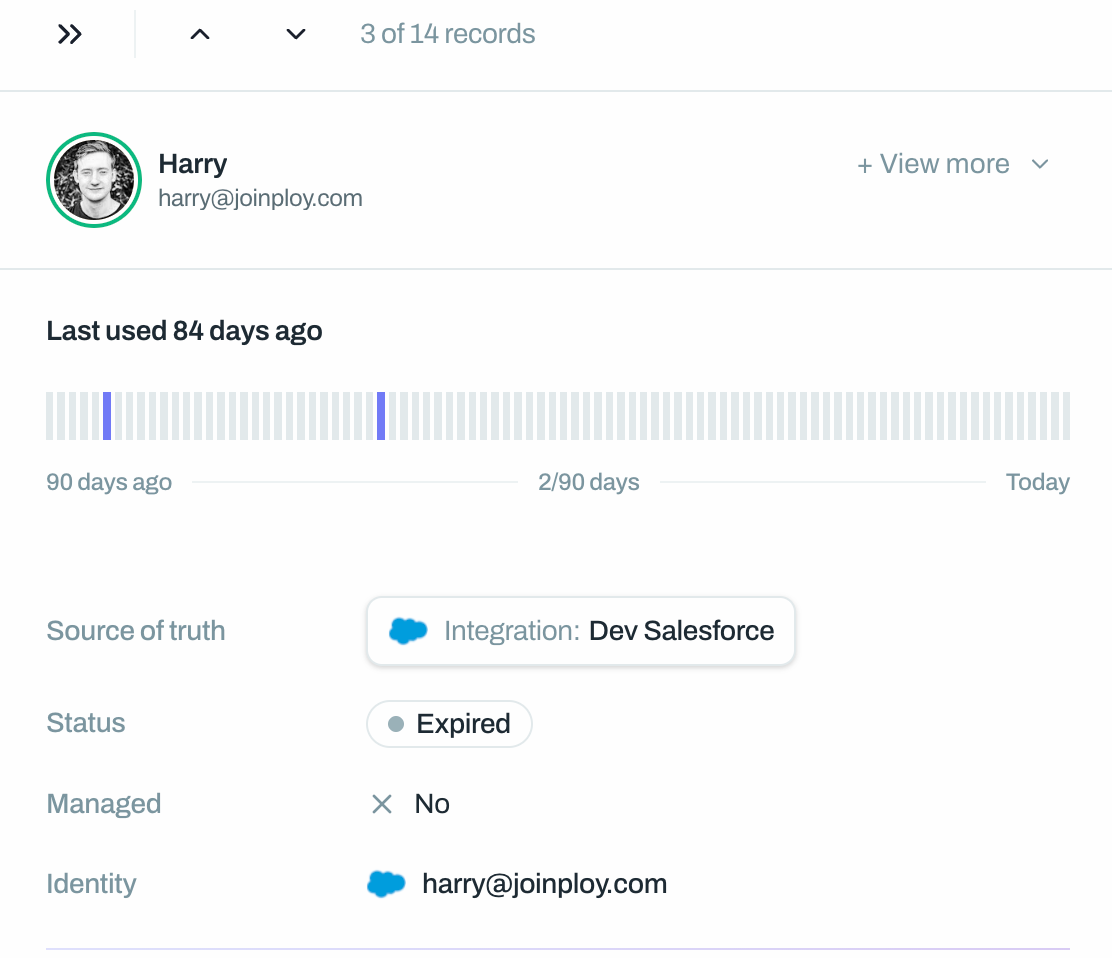
A source of truth tells Ploy which users should be considered as having ‘active’ access to an application. Only users with active access are considered in most features (e.g. access reviews, flows and offboarding). Without a source of truth, all detected users appear as shadow access. Once configured, users in your source of truth are promoted to active access.
You can configure multiple sources of truth for a single application — for example, one IdP group for admins and another for regular users.
Source of Truth Options
Type | Best For |
Integration | Apps where Ploy has a direct API integration |
Chrome Extension | Apps discovered and tracked via browser extension |
Connector Resource | Apps controlled via IdP groups (SAML/SCIM through Google, Entra, Okta) or active access can be derived from (e.g. Licenses) |
Setting Up a Source of Truth
Navigate to the application page
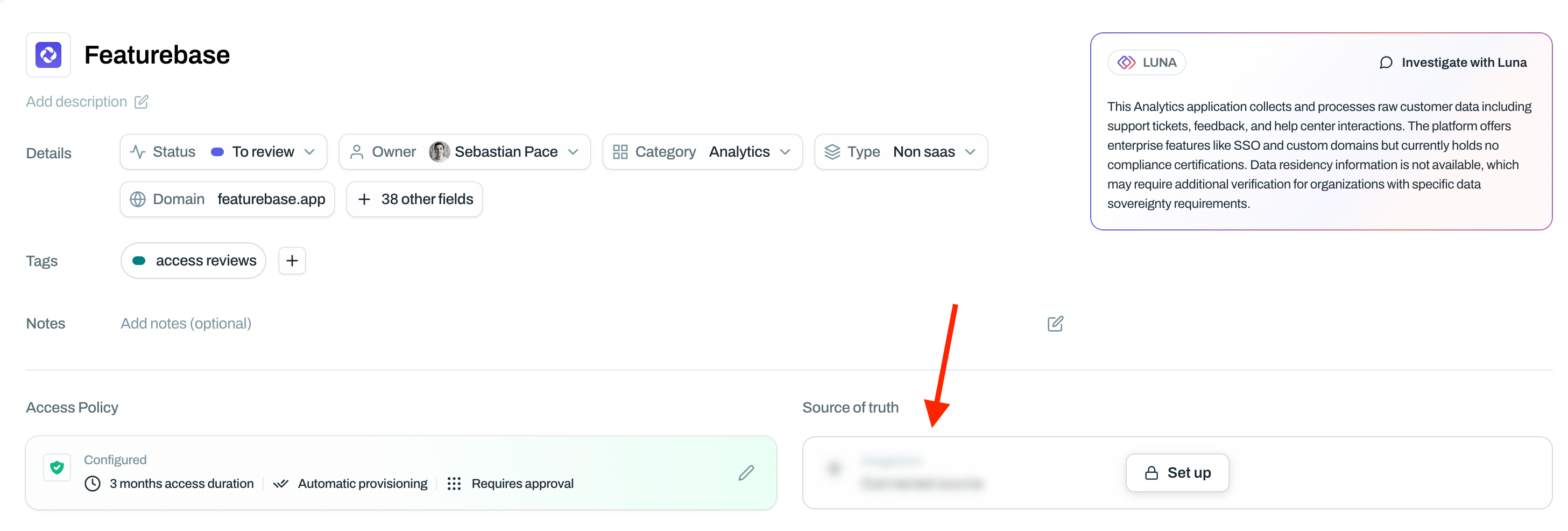
Click Set up in the Source of Truth section (or click the existing source to modify it)
Select your source type:
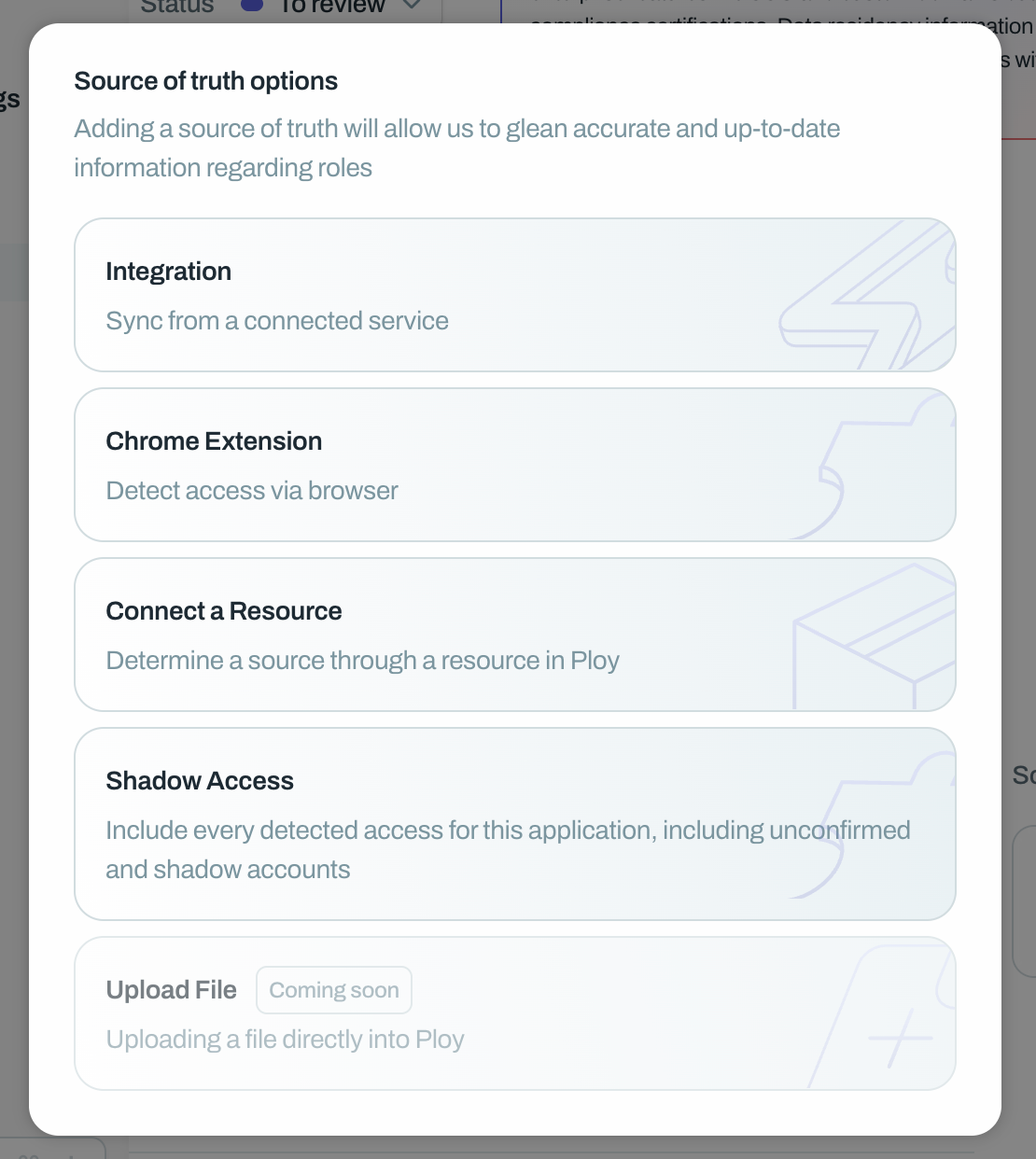
Integration
If Ploy has a direct integration with the application, select Integration. Ploy will pull the user list directly from the application's API.
Chrome Extension
Select Chrome Extension to use data collected from employees' browsers. This is useful for applications without API integrations.
Connector Resource
Select Connector Resource to link to a group in your identity provider. This is the most common option for enterprise applications controlled via SSO.
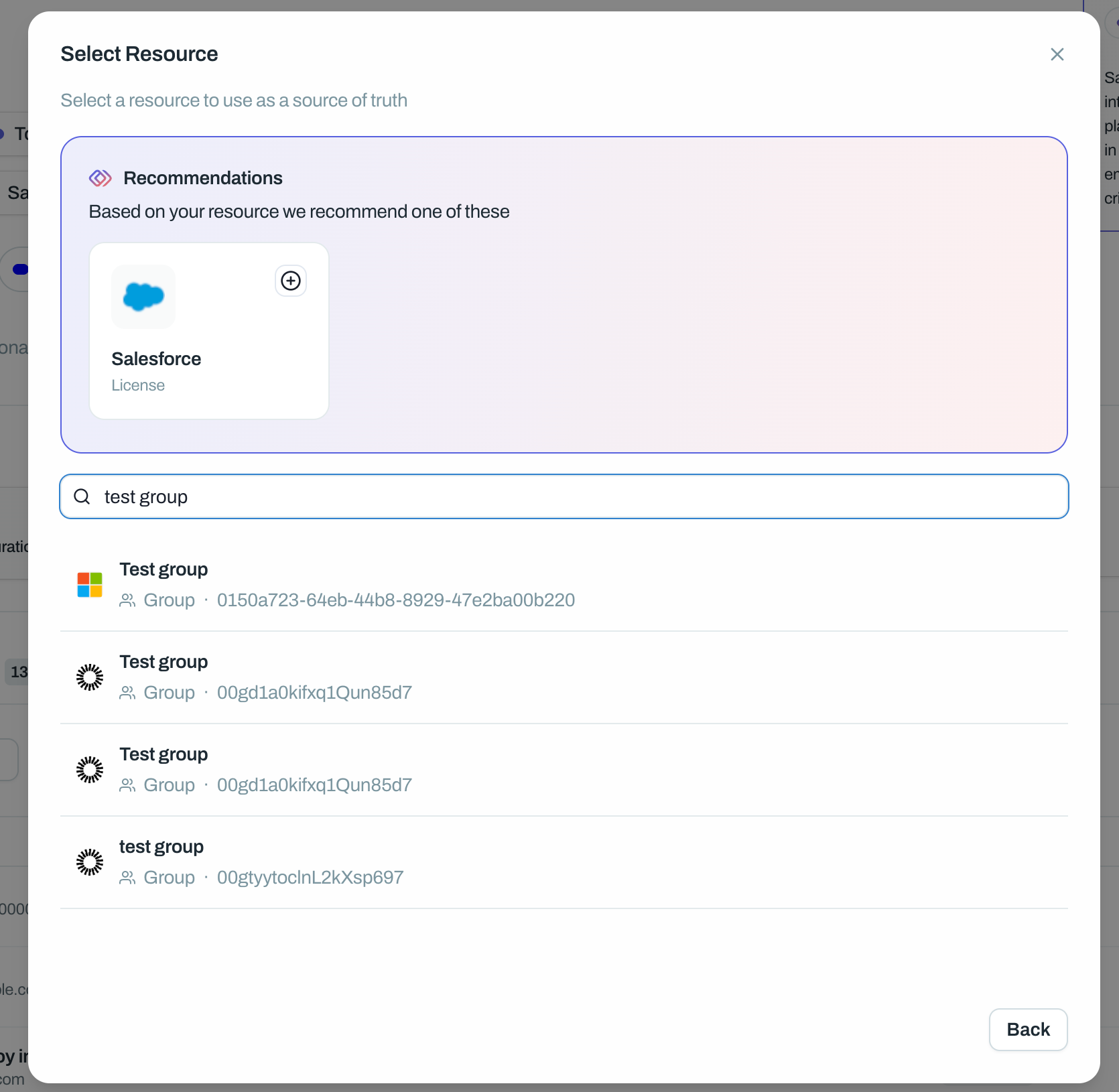
Choose the resource type (e.g. Group)
Search for and select the resource that controls access to this application
Connector Resource Settings
When using a connector resource as your source of truth, you'll see additional options:
SAML Controlled
Enable this if the selected group controls SSO access to the application. When enabled:
The user's identity is tied to the identity of the connected resource rather than the identity of the application
Ploy can surface MFA status from the IdP
Offboarding becomes simpler — revoking IdP access revokes application access
Cascade Deprovision
Enable this if you want deprovisioning from the application to also remove the user from this source of truth group.
For example: if you deprovision someone from Salesforce, enabling this would also remove them from the "Salesforce Users" group in your IdP.
⚠️ Be careful where this resource also provisions or grants access to other resources as this will remove them from there as well by removing them from the connected resource.
Entitlements
Assign a default entitlement (role/permission) to all users added via this source of truth. See Auto-Assigning Entitlements for details.
Multiple Sources of Truth
You can add multiple sources of truth to a single application. This is useful when different groups have different access levels.
Example:
Source 1: "Engineering" group → assigned "Admin" entitlement
Source 2: "Sales" group → assigned "Viewer" entitlement
To add another source of truth, click Add in the Source of Truth section after your first is configured.
What Happens After Setup
Once you save your source of truth:
Users in the source are moved to Active Access
Users not in any source of truth are moved to Shadow Access
The source is shown on each user row, so you can see where their access comes from