GitHub
Ploy offers three methods to integrate with GitHub, depending on your organization's setup and security requirements.
Integration Methods
1. Ploy GitHub App (Non-Enterprise)
The default method for GitHub.com organizations using Ploy's hosted GitHub App.
Setup Steps
Click Install GitHub App in the Ploy setup modal — this redirects to GitHub
On GitHub, select the organization you want to connect
Choose which repositories to grant access to (all or select)
Click Install — GitHub redirects back to Ploy with the installation ID
Enter your GitHub Organization Name (e.g.
my-org)
Permissions are managed by Ploy's GitHub App — no manual configuration needed.
2. Enterprise — Personal Access Token (PAT)
For GitHub Enterprise Cloud, GHE.com, or self-hosted GitHub Enterprise Server.
Setup Steps
Go to GitHub → Settings → Developer settings → Personal access tokens → Tokens (classic)
Click Generate new token (classic)
Set a descriptive name (e.g.
Ploy Integration)Select the following scopes:
read:enterpriseread:orgrepo
Click Generate token and copy it
In Ploy, enable the GitHub Enterprise toggle
Enter your GitHub Domain:
github.comfor Enterprise CloudYour self-hosted domain for GHES (e.g.
github.mycompany.com)
Enter your Enterprise Slug — the enterprise account name from your URL (
github.com/enterprises/your-slug)Select Personal Access Token (PAT) as the auth method
Paste the token
The PAT must belong to an enterprise owner.
3. Enterprise — Customer Enterprise GitHub App
The most secure method. The customer creates and manages their own GitHub App installed on their enterprise.
A. Create the GitHub App
Go to GitHub → Settings → Developer settings → GitHub Apps → New GitHub App
Configure the app:
App name: e.g.
Ploy Integration (your-company)Homepage URL: your company URL
Webhook: uncheck "Active" (not needed)
Set the following permissions:
Organization permissions:
Members: Read & Write
Administration: Read-only
Repository permissions:
Metadata: Read-only
Click Create GitHub App
Note the App ID from the app's settings page
B. Generate a Private Key
On the app's settings page, scroll to Private keys
Click Generate a private key
A
.pemfile will download — keep this safe
C. Install the App
From the app's settings page, click Install App in the sidebar
Install on your enterprise account
Install on each organization you want Ploy to scan
D. Configure in Ploy
Enable the GitHub Enterprise toggle
Enter your GitHub Domain (
github.comfor Enterprise Cloud, or your self-hosted domain)Enter your Enterprise Slug
Select Enterprise GitHub App as the auth method
Paste the App ID
Paste the full contents of the Private Key
.pemfile (including BEGIN/END lines)
Associating GitHub Usernames to Employees
Because engineers typically use personal GitHub accounts, granting and revoking access can be difficult. Ploy associates GitHub accounts with employees in two ways.
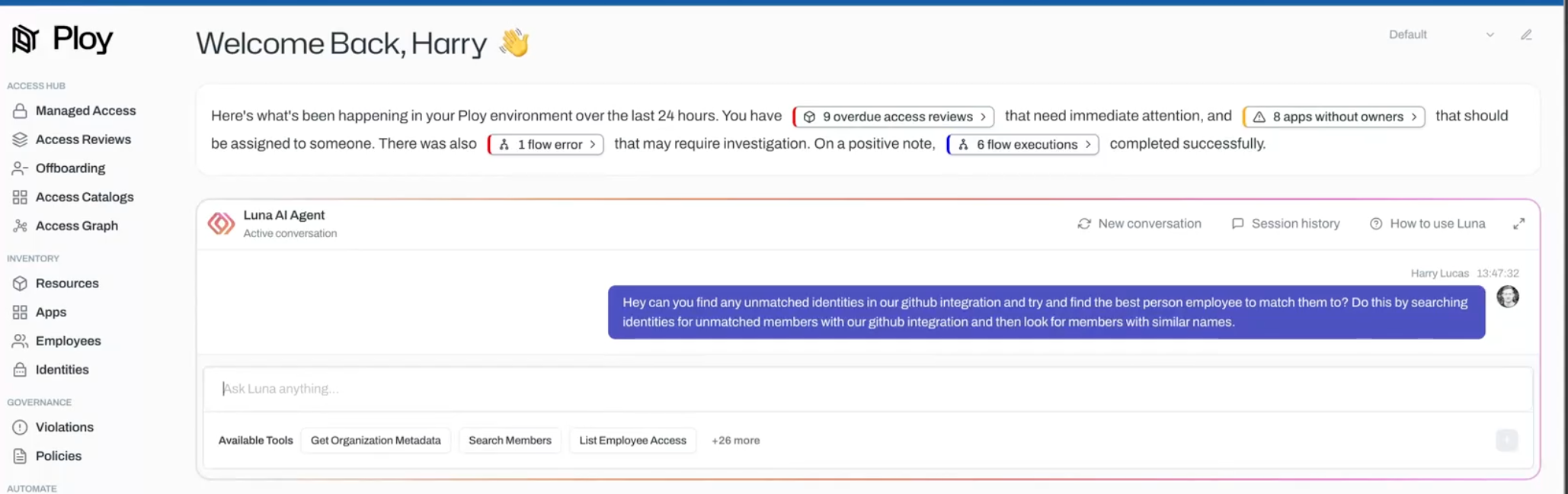
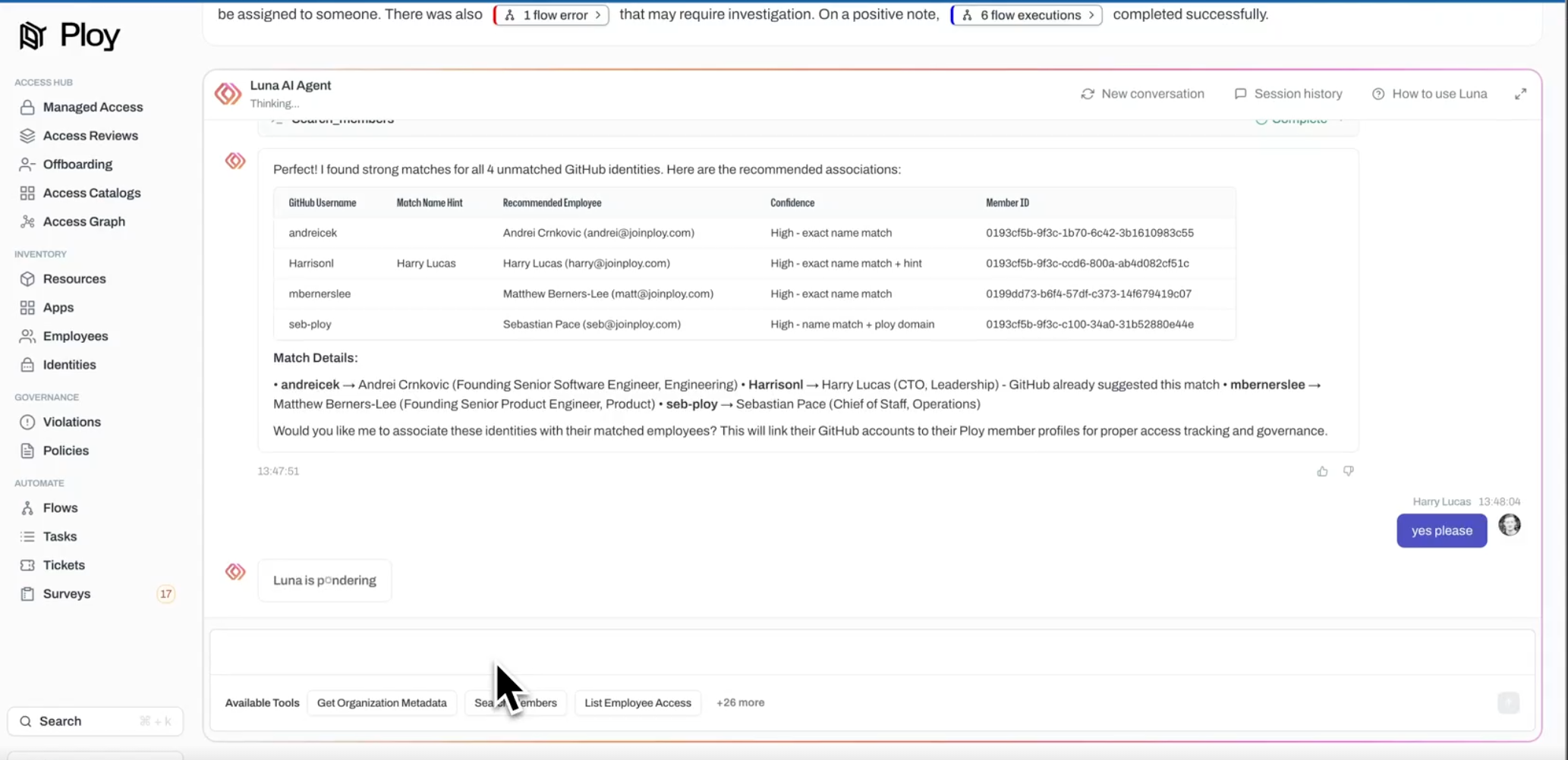
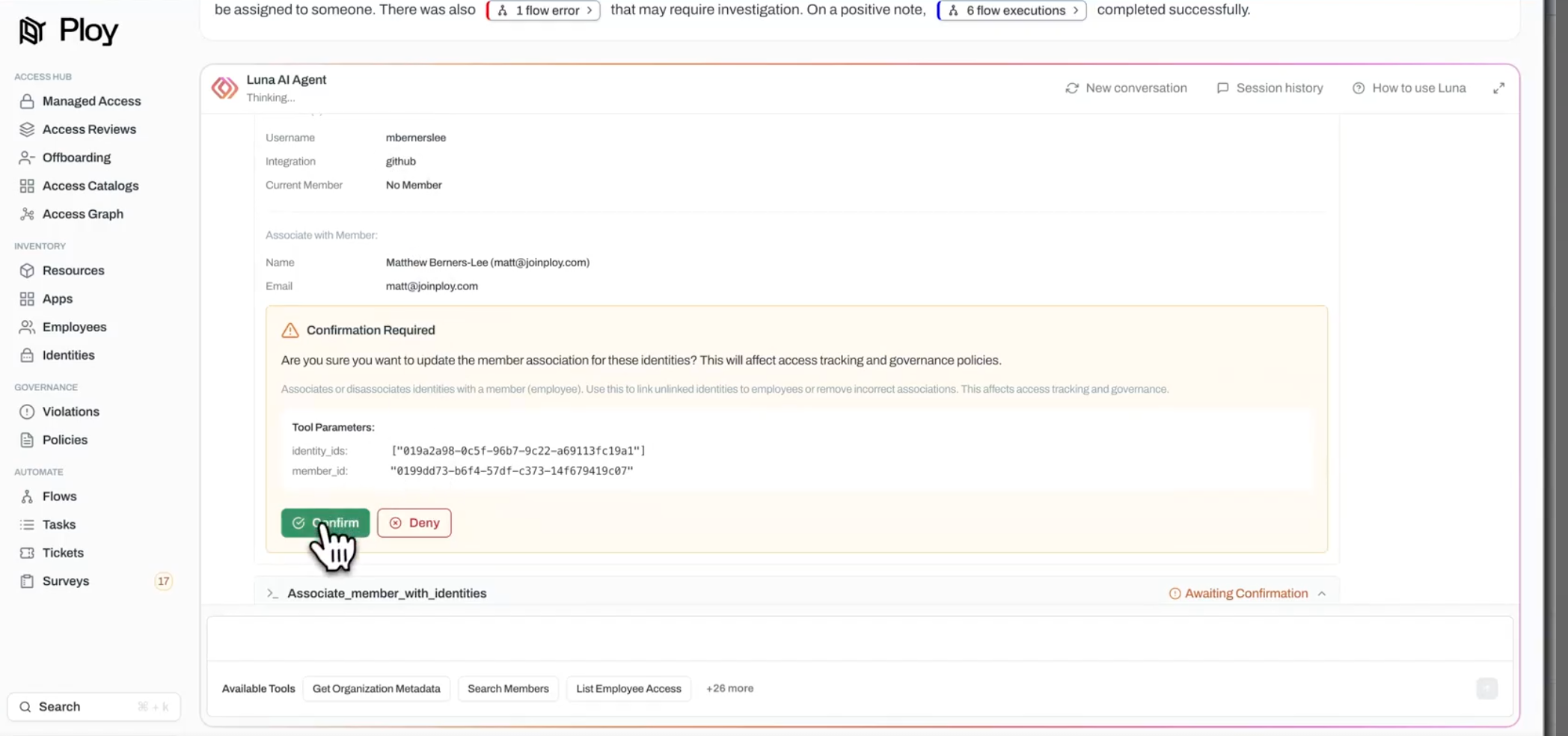
1. Luna AI
Ask Luna to associate GitHub accounts with employees, and she'll recommend associations based on available data.
2. Manual Association
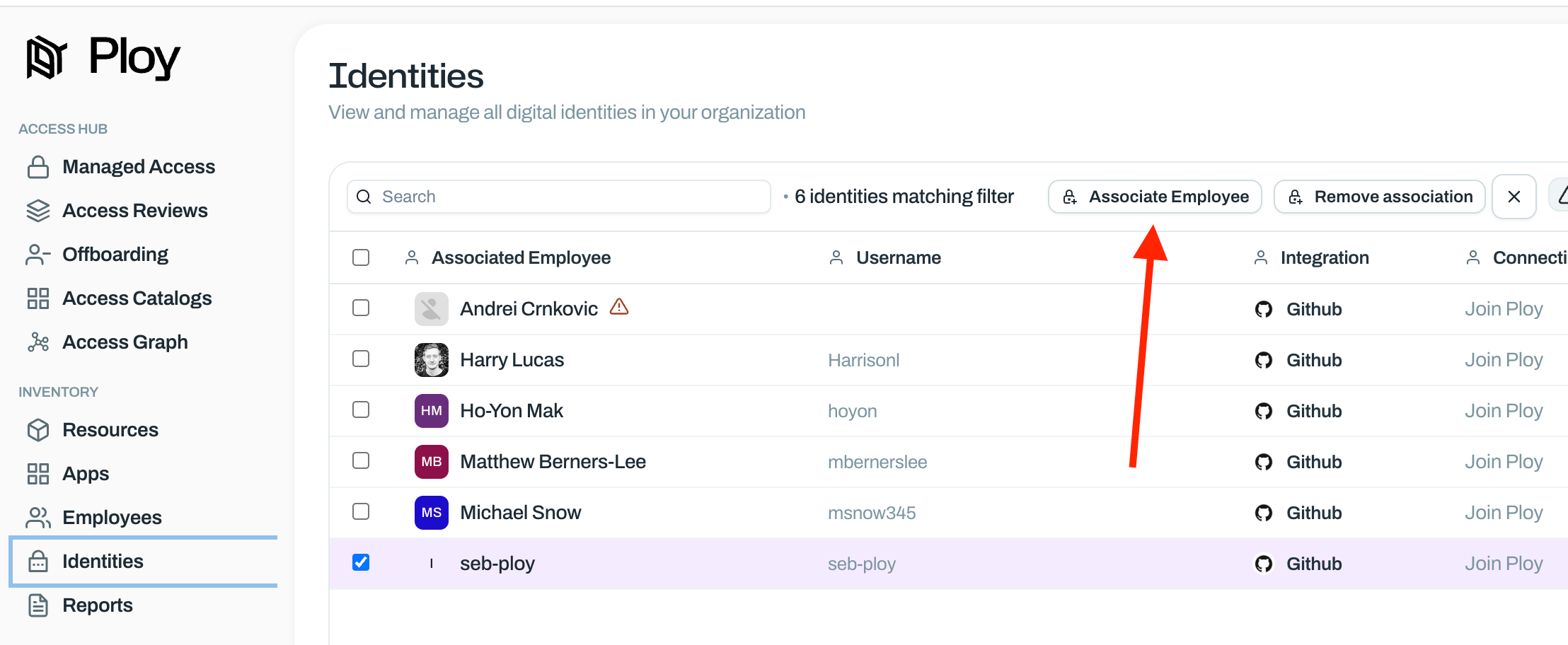
Through the Identities page, you can also associate GitHub accounts to team members manually. Ploy will then be able to automatically grant and revoke access going forward.
Employee Onboarding
When an engineer joins, a simple flow like the one below will automatically add the new member to the company GitHub account.
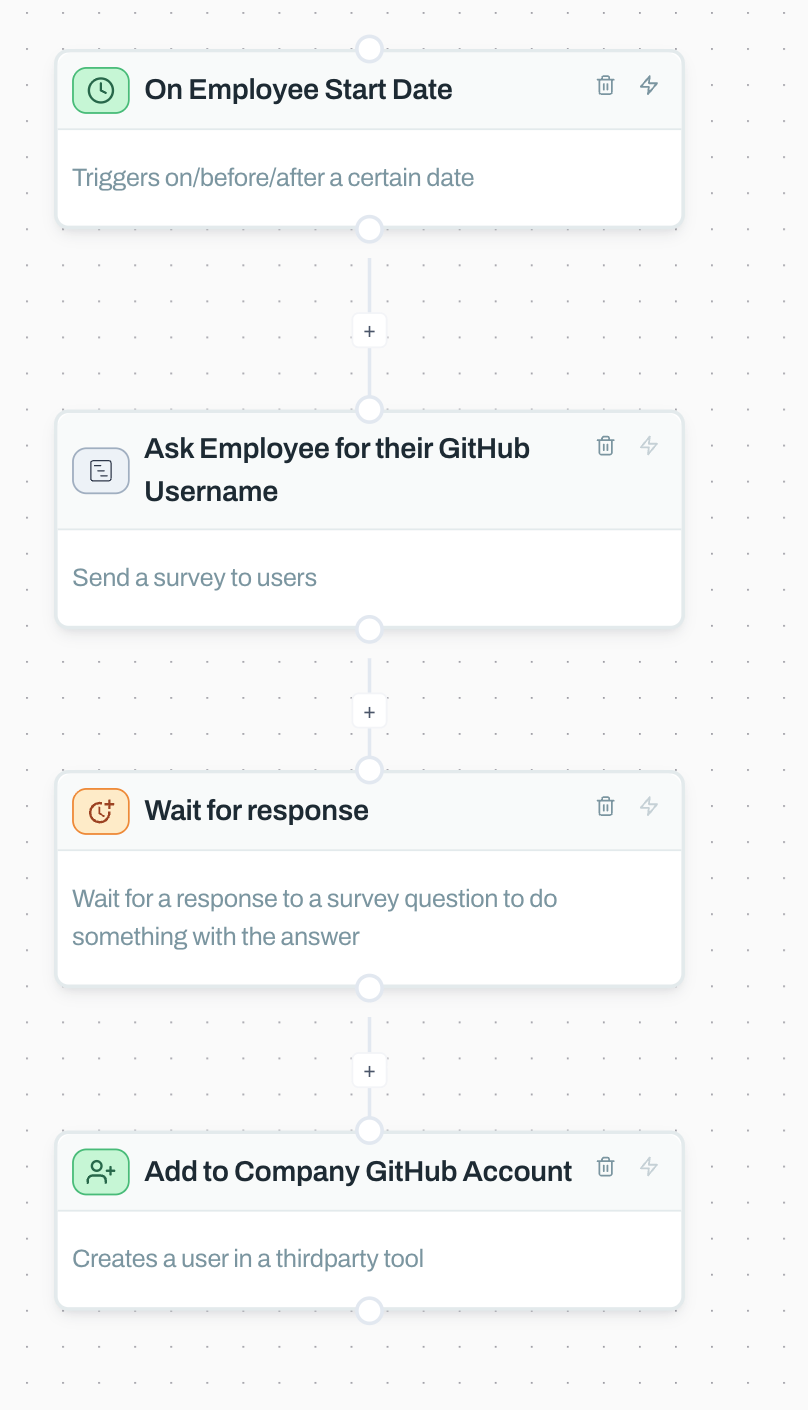
Ploy will know which personal GitHub username is linked to which employee, enabling automated account removal at offboarding.
Employee Offboarding
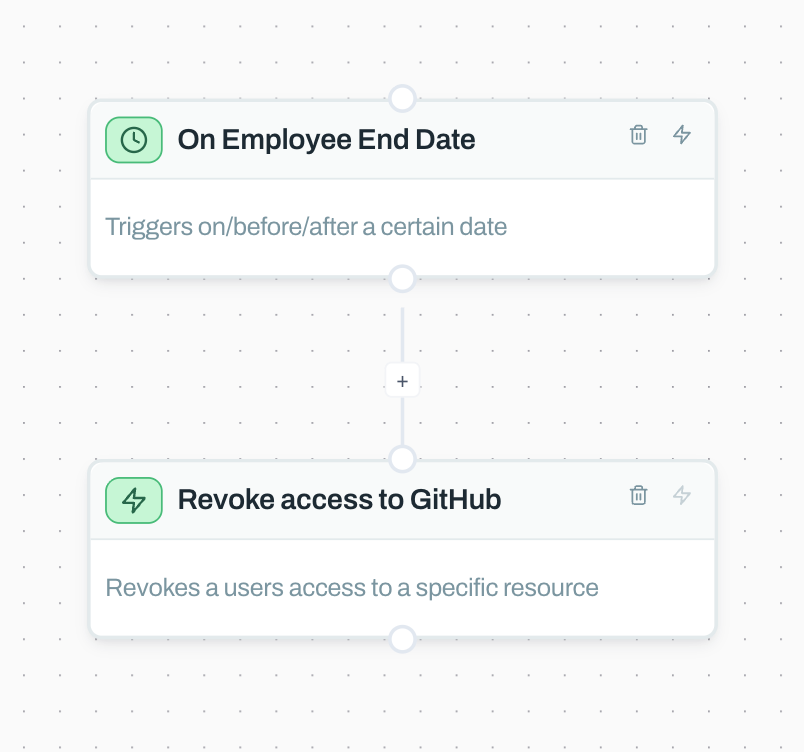
When an employee leaves, Ploy can automatically revoke their access to the company's GitHub account.