
Create an Immediate Offboarding
Immediate offboarding removes a user's access across all connected apps when they leave your organisation. You can customise which apps to include and track the entire process in one place.
Start an offboarding
Go to the Offboarding tab and click "New Offboarding".
Select the employee and set their end date.
Review the list of apps where the user has access. Ploy automatically detects all connected applications.
Customise the offboarding:
Deselect apps you want to exclude from offboarding
Use tags to filter apps by category (e.g., "Critical," "HR," "Development")
Click Create.
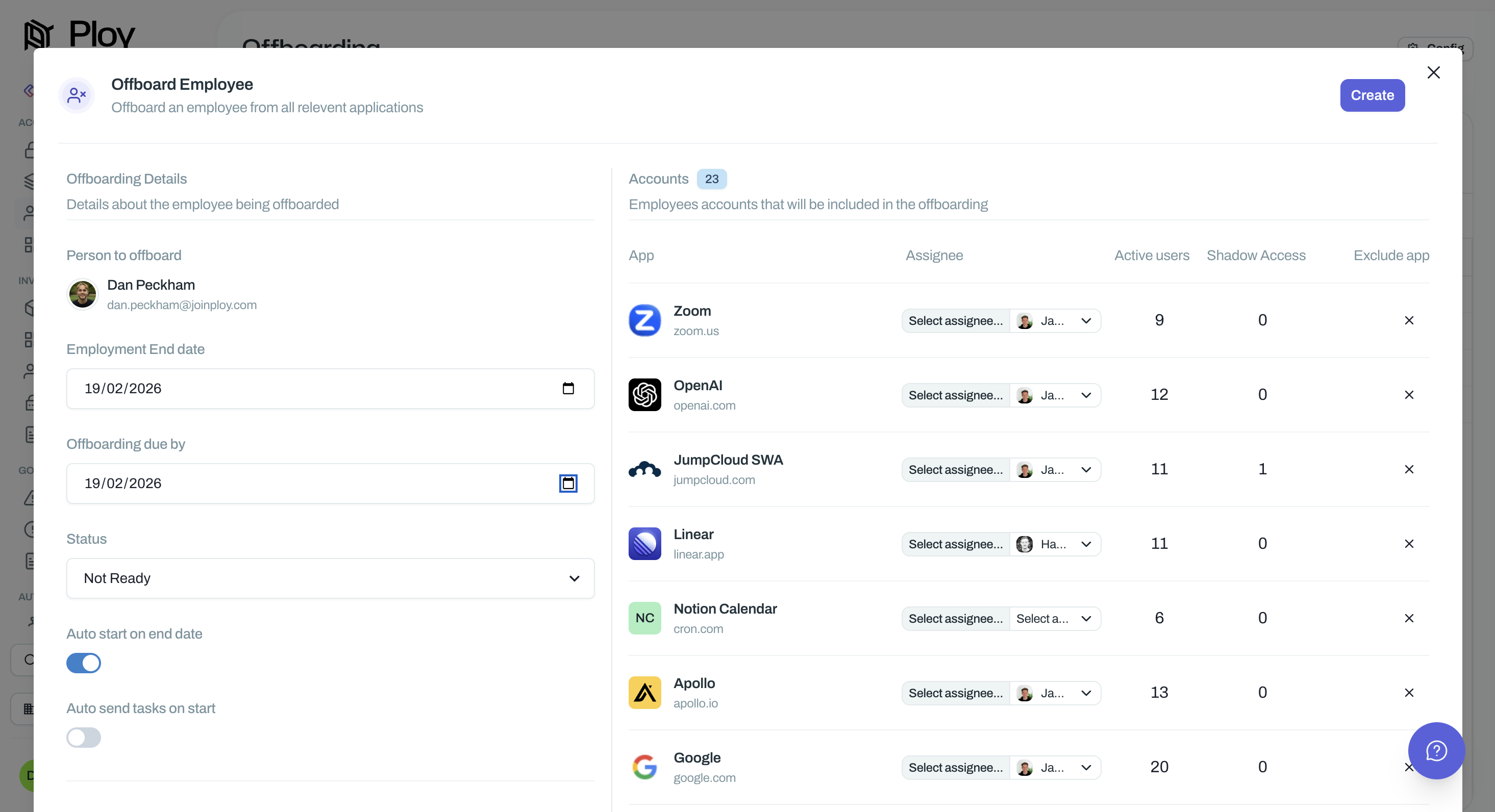
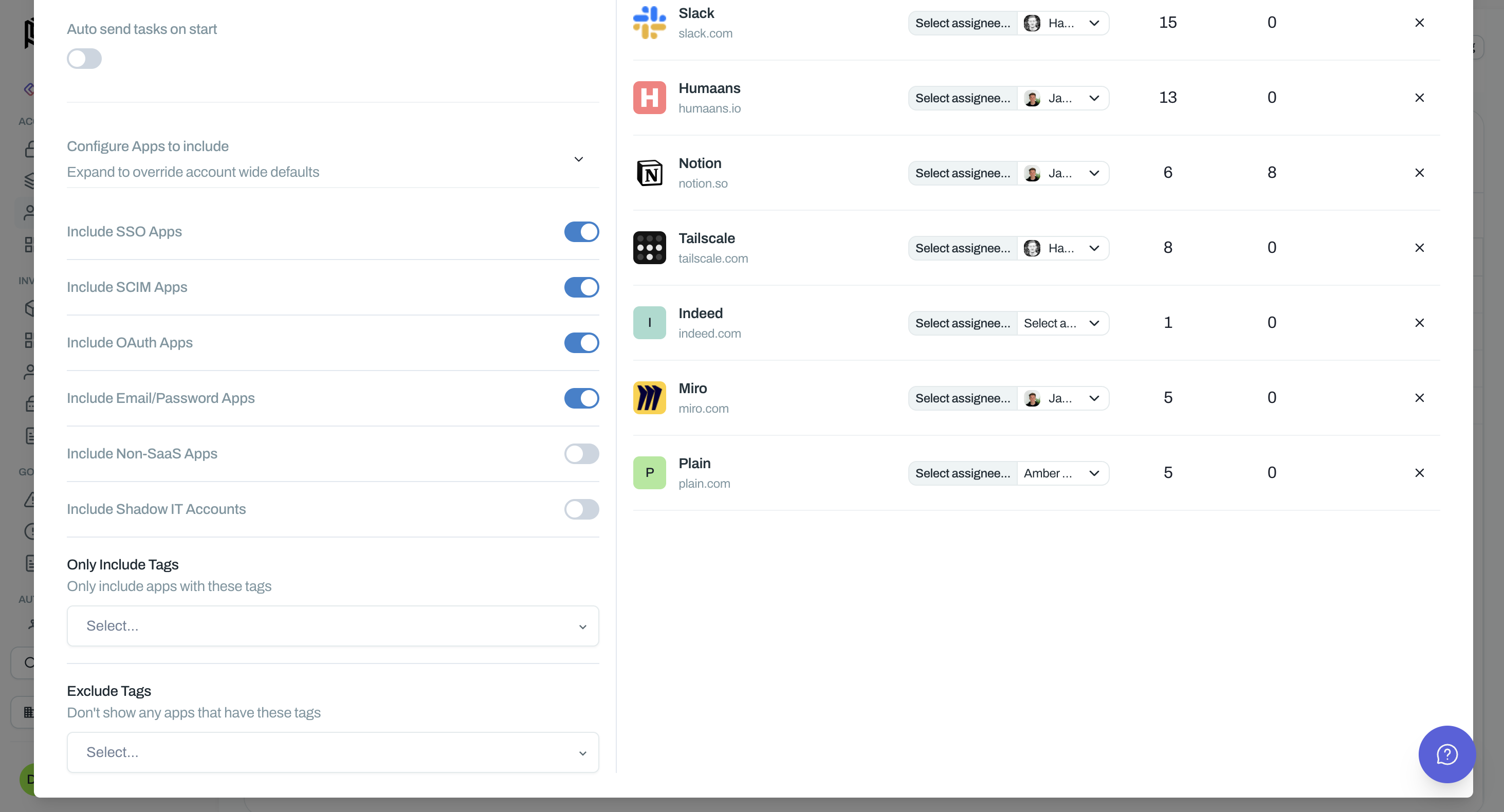
If you want to start the onboarding immediately you will need to manually press "Start"
Track offboarding progress
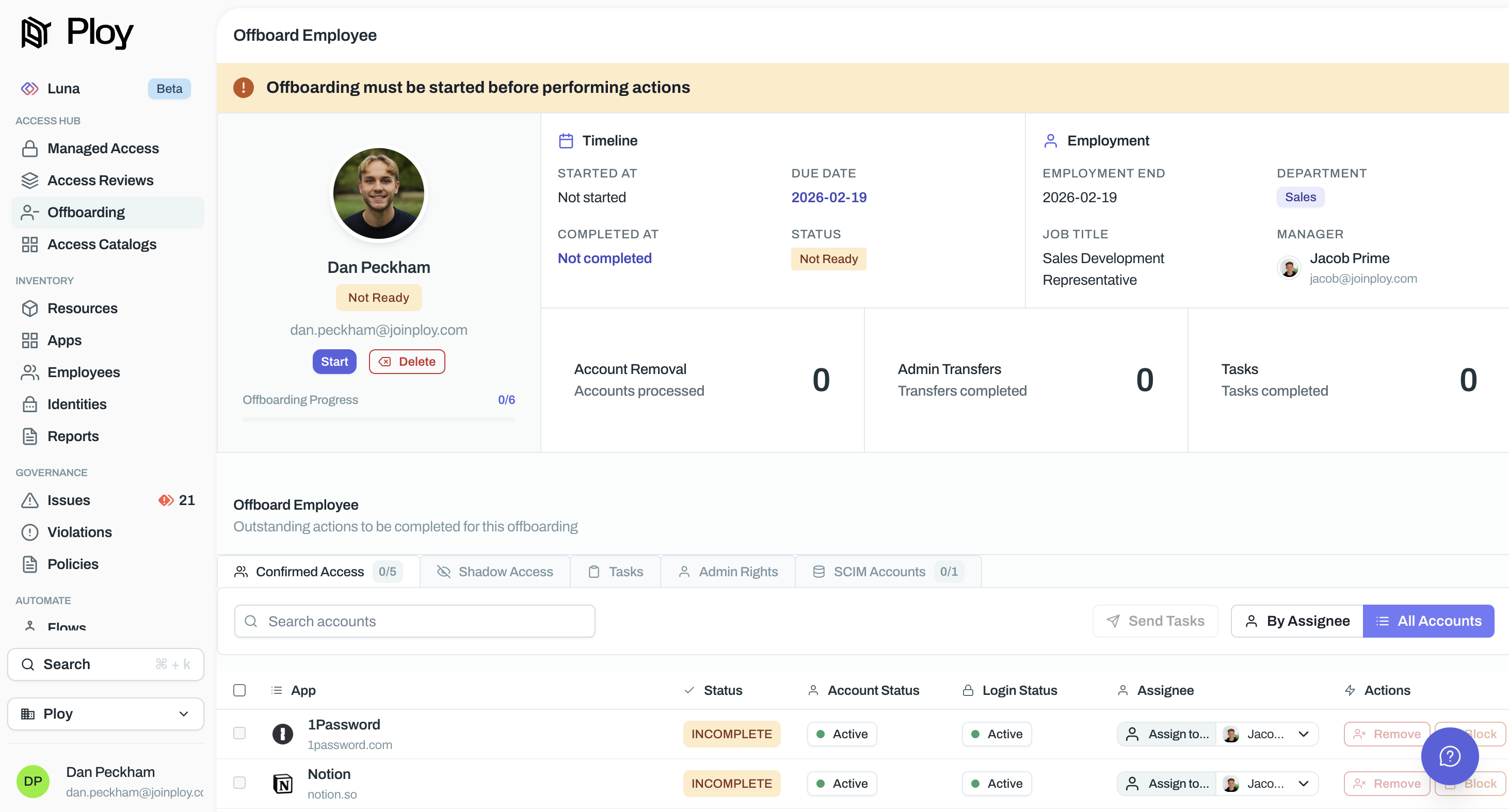
Once started, Ploy displays real-time progress for each app:
Account Status — Shows whether access has been revoked, suspended, or is pending
Successfully Offboarded Apps — Green checkmarks indicate completed actions
Assignee — See who's responsible for manual tasks
Manual Handoff Alerts — Flags for shadow access, admin accounts, or other items requiring manual intervention
Shadow access and admin accounts can't be automatically revoked. Ploy flags these so you can manually review and reassign permissions.
Export evidence
For audit purposes, export a complete record of the offboarding:
Open the member offboarding.
Click Export, this will be where the Start button was.
Download the report with timestamps, account statuses, and all actions taken.
This evidence is audit-ready for SOC 2, ISO 27001, and other compliance frameworks.