
Import users with the import wizard
Open a resource, choose Import users, and walk through the three-step wizard: Select Users, Map your columns, then Review. A successful import shows Rows successfully imported.
With the import wizard you can either:
Import a full user list — create or refresh users and their access in Ploy from your file or selection. Optionally turn on Make this the definitive list so anyone missing from the import is marked revoked in Ploy only (access in external systems is not removed).
Update existing users only — turn on Only update existing users to refresh data for people who already have access. Ploy does not create new users or grant access; unmatched rows are skipped.
You can import from a CSV file or select people already in Ploy. For a different path that uses scrape-based discovery, see How to import users to Ploy using the Browser Extension.
Importing users does not grant them access. Use the import wizard to create or refresh user and access records in Ploy; to give someone access to a resource, use Grant Access to Resource.
Before you start
You need access to the resource’s access actions so Import users is visible on the resource access bar.
For CSV import, prepare a .csv file. On the first wizard step you can choose Download Template to get a sample import_template.csv.
Open the import wizard
Start the wizard from the resource you want to update.
Open the resource in Ploy.
On the resource access bar, click Import users.
The wizard opens on Select Users with the description Choose how to import users.
Import from a CSV
Upload a CSV on Select Users, map columns, then review and import.
Select Users
Drag a CSV onto the drop zone, or click the zone to choose a file. The zone shows Drag and drop a CSV file here, or click to select (and Drop the CSV file here while you drag).
Optionally click Download Template if you need a sample file format.
Confirm the wizard previews the first five rows of the file.
Click Next.
If the file is empty or unreadable, the wizard can show errors such as No rows found in this CSV., Some CSV rows could not be parsed., or Could not read file.
Map your columns
Point each Ploy field at the CSV columns and clean values as they flow in.
For each Ploy field, choose the matching CSV column.
Map the fields your import needs. The UI marks requirements as follows:
Email — Required for humans
Ext ID — Required for non-humans
Granted At — Required
Identity Integration — Required
Identity Type — Required
Map optional fields when your file includes them: First Name, Last Name, Display Name, Last Access, Entitlements, Tags, and Auth Type.
If needed, add transforms on a mapped field (for example Trim whitespace, Lowercase, Find & replace, or Split into multiple) so values match what Ploy expects. For the entitlement-specific options, including Binary entitlement and Replace existing entitlements, see the entitlement options below.
Under Advanced, optionally open Ignore Rows to skip rows that match column conditions, or use Merge duplicate identities when the file has duplicate identity rows.
Optionally turn on Only update existing users if this import should refresh people who already have access and skip unmatched rows without creating anything new. With this option on, Granted At and Identity Type can be skipped.
Click Next when mappings are valid.
You cannot continue while mapping issues remain. The wizard blocks progress with messages such as Map fields before continuing or Cannot import — fix these field mapping issues:.
Transform entitlement values
Map the Entitlements field to a CSV column, then use transforms to turn the raw cell values into the entitlements Ploy records. The preview panel on the right shows what each row becomes as you work.
The mapped Entitlements field has these options:
Replace existing entitlements: each account in the file keeps only the entitlements listed here. With the toggle off, the import only adds to what they already have.
Tag as: the type recorded for the entitlements. Turn on Use column name as type to use the CSV column's name as the type, or set the type per row from a column. Use Apply to more columns to reuse the setup on other columns.
Pull from another column: take values from more columns too, with + Add override rules and a fallback value for when every column is empty.
Access Chain: map entitlements that belong to another object, such as a group holding a database permission.
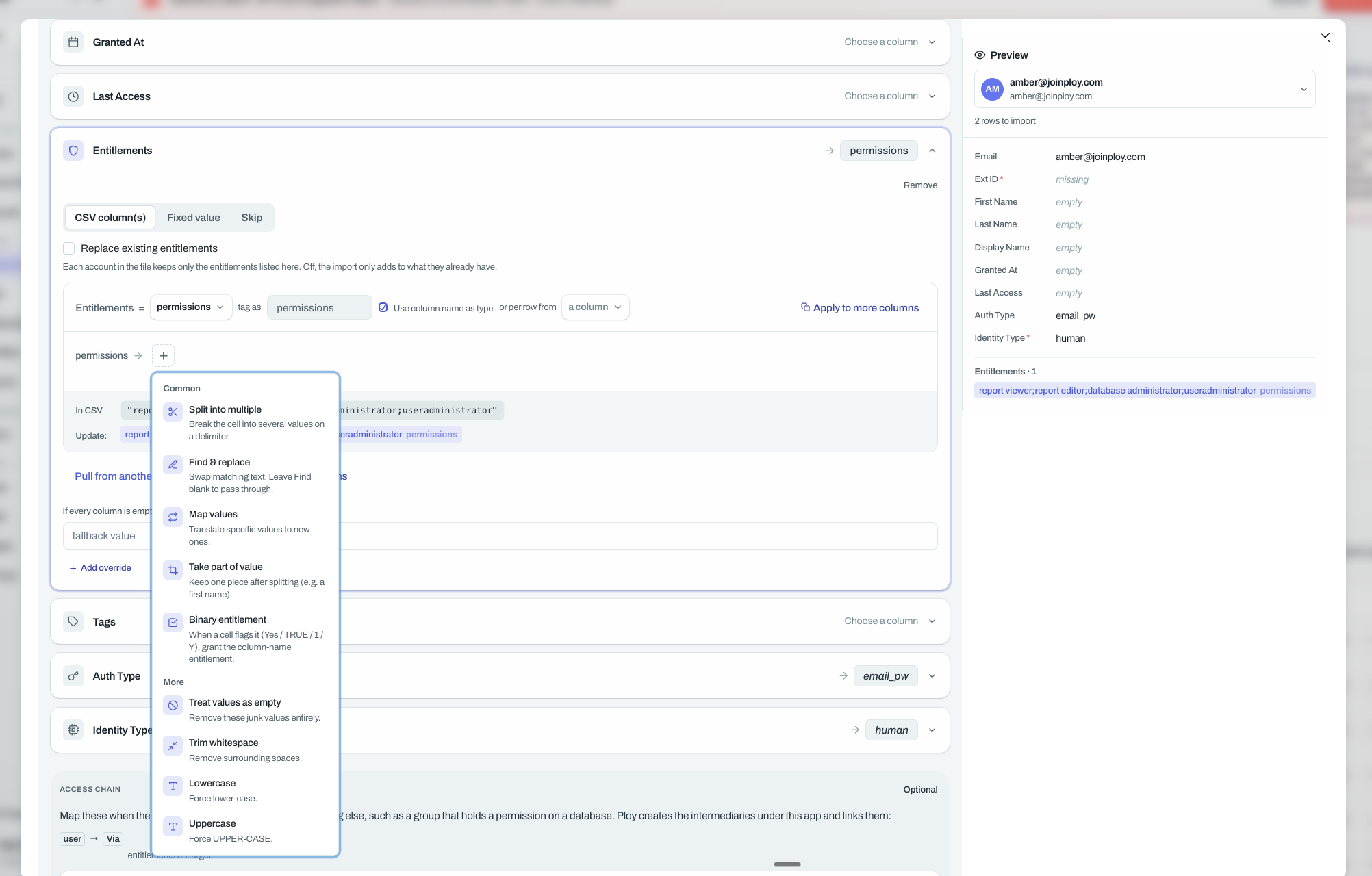
The transform menu groups the options under Common and More:
Split into multiple: break the cell into several values on a delimiter.
Find & replace: swap matching text. Leave Find blank to pass through.
Map values: translate specific values to new ones.
Take part of value: keep one piece after splitting (for example, a first name).
Binary entitlement: when a cell flags it (Yes / TRUE / 1 / Y), grant the entitlement named by the column.
Treat values as empty: remove these junk values entirely.
Trim whitespace: remove surrounding spaces.
Lowercase and Uppercase: force lower-case or UPPER-CASE.
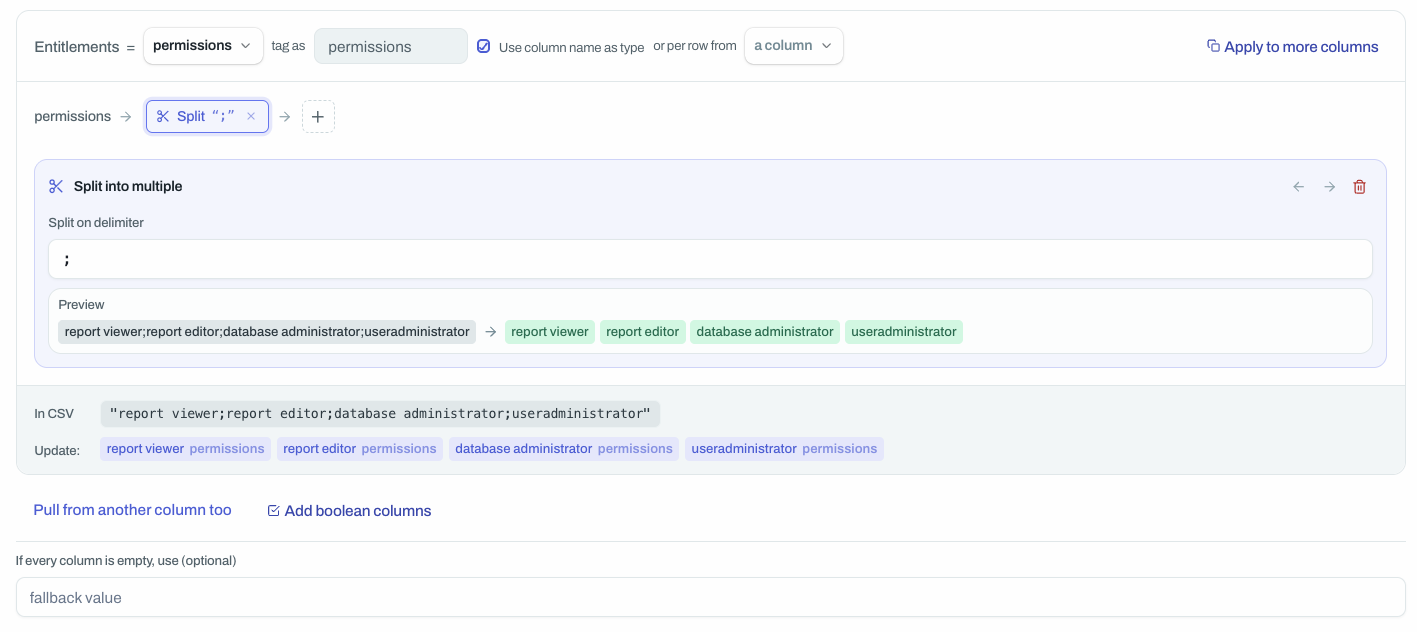
Split into multiple
Use it when one cell holds a list, such as several permissions separated by semicolons.
Map Entitlements to the column that holds the values, for example a
permissionscolumn.Open the transform menu and choose Split into multiple.
Under Split on delimiter, enter the separator your file uses, for example
;.
Each split value becomes its own entitlement with the column's type. In CSV: report viewer;report editor;database administrator;useradministrator. Update: report viewer permissions, report editor permissions, database administrator permissions, useradministrator permissions.
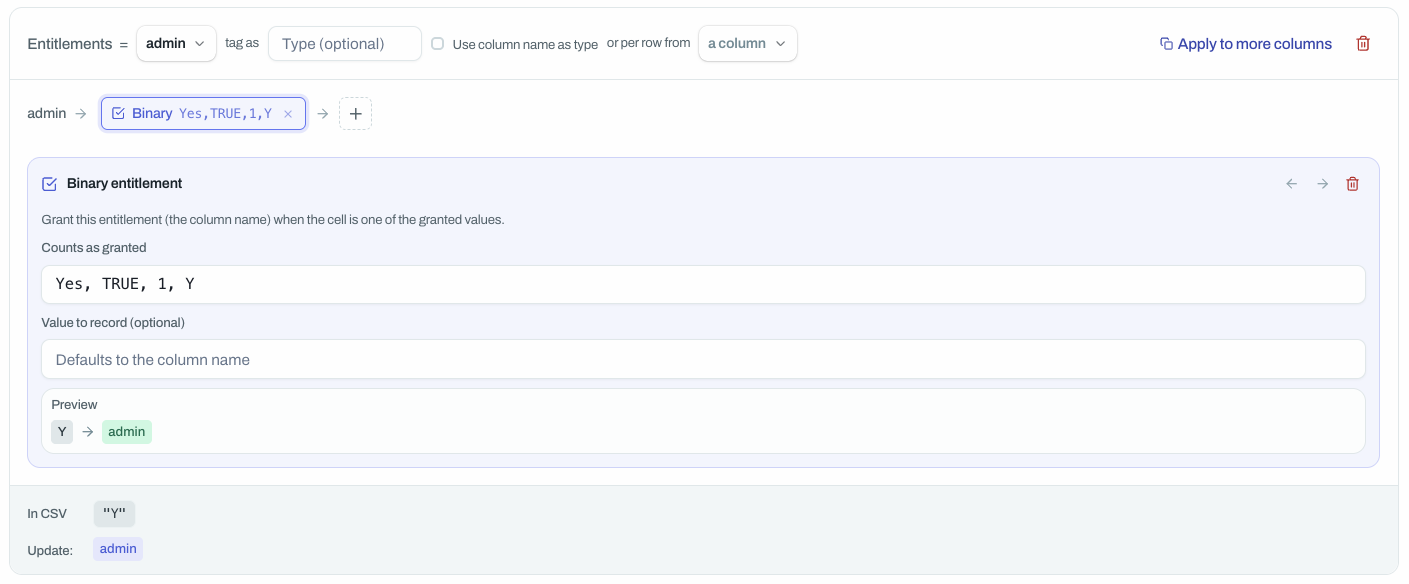
Binary entitlement
Use it when a column flags a single entitlement instead of naming it. The rule grants the entitlement named by the column when the cell is one of the granted values.
Open the transform menu and choose Binary entitlement.
Under Counts as granted, list the values that mean granted. The default is
Yes, TRUE, 1, Y.Optionally set Value to record. It defaults to the column name.
In CSV: Y. Update: admin.
Saved column mappings
Saved mappings are shared with everyone in your organisation — anyone can edit or delete them.
A saved mapping stores your column mappings, transforms, overrides, Ignore Rows filters, and duplicate-identity settings. It does not store the CSV file or its rows, so you can reuse the same mapping on any file with matching columns. The Download Template button on Select Users is something else: it gives you a sample import_template.csv to fill in and saves nothing.
Use Load a saved mapping to apply an existing mapping. If the saved mapping references columns that are not in your current file, the wizard shows Some columns didn't match this file, skips those mappings, and applies everything else.
Use Save, Save as new mapping…, or Overwrite “...” to store the current mapping. The save dialog is titled Save column mapping (placeholder example: e.g. Workday people export). Overwriting replaces the entire saved configuration, not individual fields, and the change applies to everyone in your organisation.
Deleting a mapping removes it for everyone in your organisation and cannot be undone.
When a mapping was used for this app before, the wizard can auto-load it and show a toast such as Loaded “...”.
Create templates with Luna
Luna can create, list, and preview saved import templates, which are the same saved mappings you manage on Map your columns. Open Luna from the sidebar (see Getting started with Luna for permissions and entry points) and ask in plain language, for example to map your CSV columns and save the result as a template.
Luna can:
List templates: show each template's name, who created it, and when it was last used.
Preview an import: check a CSV against a mapping and report valid, invalid, filtered, and merged row counts, sample rows, skipped rows, and warnings. A preview never imports anyone.
Save a template: Luna shows the template name in a Save Import Template card before saving, then confirms the save and tells you to choose the template under Saved column mappings on the Map your columns step. If no name is given, Luna reports that a template name is required.
Luna cannot run the import itself. Once your template is saved, open Import users on the resource, upload your CSV, and choose the template under Saved column mappings.
Ignore Rows
Use Ignore Rows to skip rows matching specific column values.
Open Advanced, then Ignore Rows.
Under Ignore rows where, choose a column (Select column), an operator, and a value when the operator needs one.
Add more conditions with Add condition (additional rows use or where).
Operators are:
=is not
contains
is one of (enter values such as
Value 1; Value 2)is set (no value field)
is not set (no value field)
Review and import the CSV
Confirm the import summary, then run it.
On Review (Review and import), check Import Details, including Import Method as CSV Import, Users to Import, and any Rows Merged or skipped-row summary.
Optionally turn on Make this the definitive list to set this import as the source of truth for user access. You cannot combine this with Only update existing users.
Click Import.
When the import succeeds, Ploy shows Rows successfully imported. Use Back to change earlier steps, or Cancel to close the wizard.
Select users already in Ploy
Import people who already exist in Ploy without uploading a CSV.
On Select Users, leave the CSV empty and use Select users to import to choose the people to include.
Select at least one user, then click Next.
On Map your columns, complete the member mapping step. The full CSV column-mapping UI is for file imports only.
On Review, confirm Import Method shows User Selection, then click Import.
If no users are selected, the wizard shows Select at least one user to continue. If neither a CSV nor users are provided, it shows Upload a CSV or select users to continue.
Only update existing users is supported for CSV imports only, not for direct user selection.
What each import mode does
Choose the mode that matches whether you are creating access data, refreshing metadata, or reconciling the full list in Ploy.
Mode | What happens in Ploy |
|---|---|
Full user list (default) | Creates or refreshes members, identities, and access rows from the mapped file or selection. |
Only update existing users | Refreshes data for people who already have access. Does not create new users or grant access. Rows that do not match an existing user are skipped. Humans are matched by email; non-human identities by ext ID. |
Make this the definitive list | Treats the import as the source of truth for user access. Users not on the list are marked revoked as of today in Ploy only — access in external systems is not removed. Turn this off to add imported users without revoking anyone missing from the list. Cannot be combined with Only update existing users. |
Common validation rules
These checks apply when you import from CSV.
Identity type must be mapped unless you are in update-only mode (Identity type column must be mapped).
When the file includes humans, email must be mapped and every human row needs an email.
Non-human identities can only be imported for apps, not for non-app resources. Non-human rows need an ext ID column mapped and a value on every row.
Update-only cannot be combined with definitive list, and update-only cannot be used with user selection.
If nothing valid remains after mapping and filters, the wizard shows No valid rows to import.