
Chrome managed browser deployment
Navigate to Google admin
First step is to visit Google Admin > Chrome browser > Apps & Extensions
You can optionally deploy this to a specific Org unit only by selecting it from the list on the left.
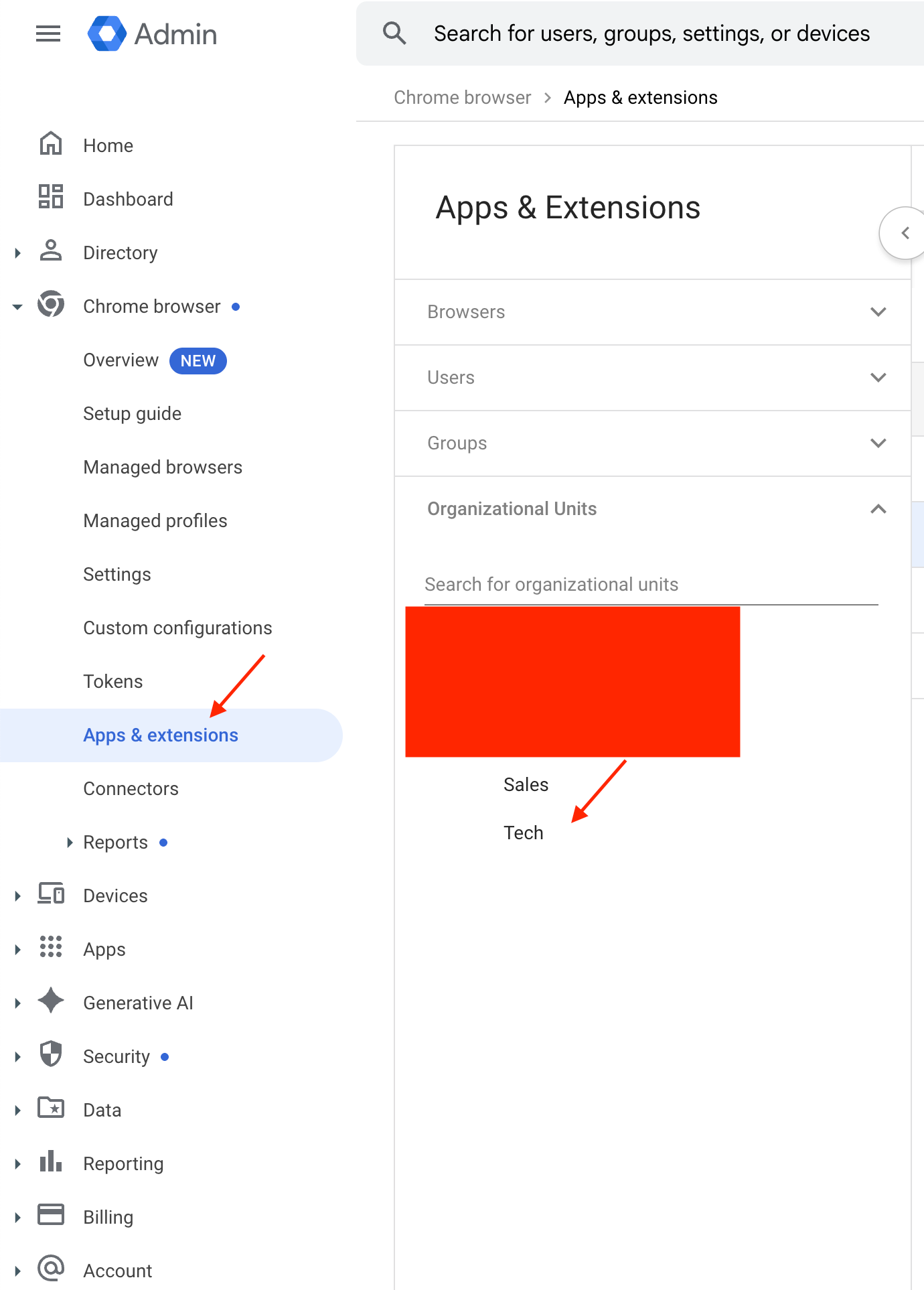
Add the Chrome Extension:
In the bottom right you should see an option to ‘Add Chrome app or Extension by ID’. Click this and a modal should appear.
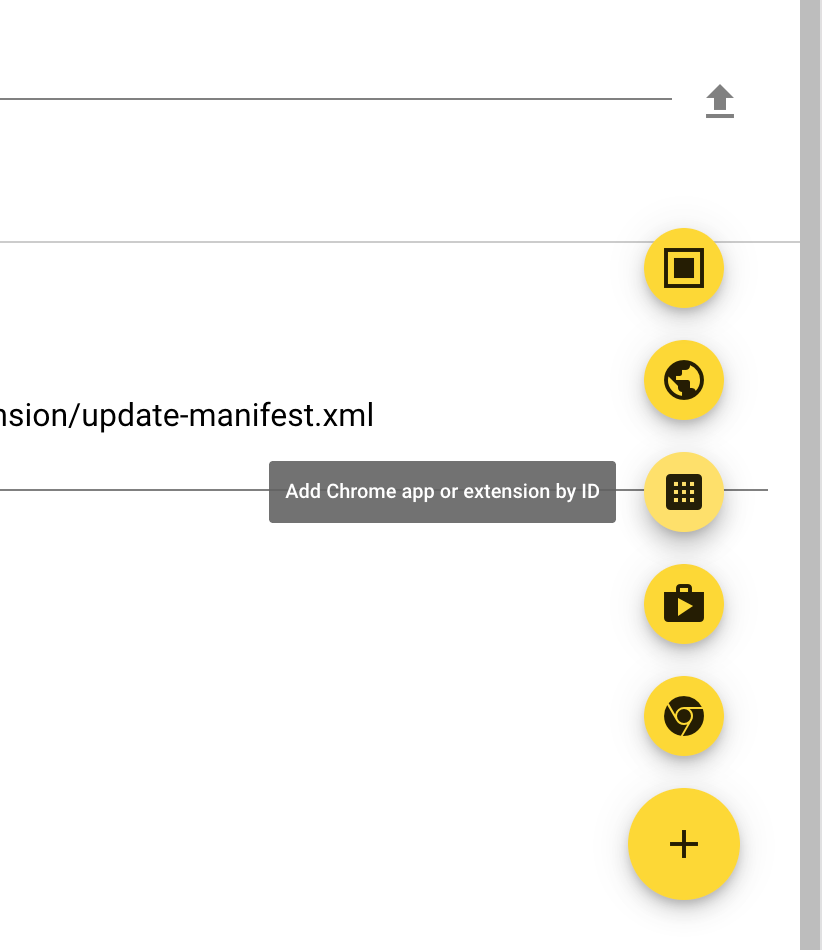
3 - Fill in with the Ploy extension manifest:
Extension ID: onophcmaogkfmemihdicghifbojhhkik
URL: (Select from a custom URL in the dropdown): https://ploy-chrome-extension.s3.amazonaws.com/extension/v2/update-manifest.xml
Then hit ‘Save’
4 - Configure Extension:
The final step is to select the extension we just added from the list:
onophcmaogkfmemihdicghifbojhhkik
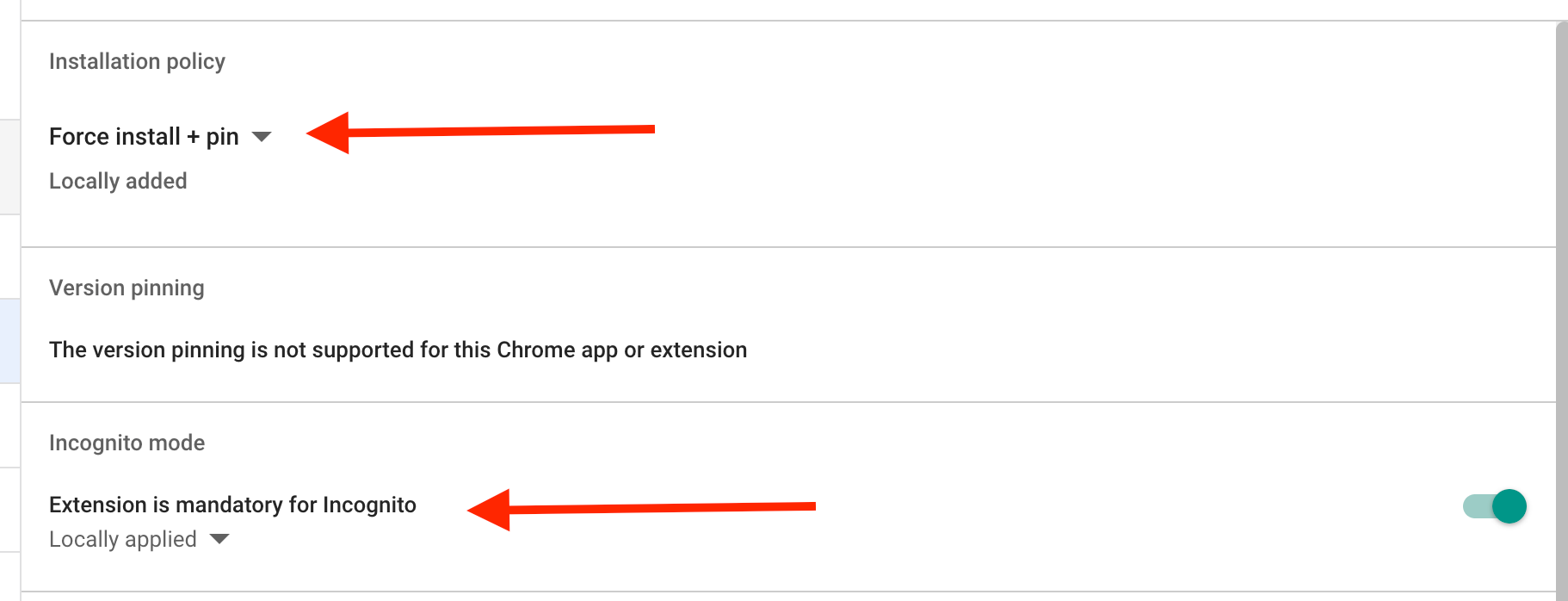
Then firstly, you need to select Force install + Pin to get the extension auto-installed across all users in the selected Org Unit/Company. Optionally select ‘Extension is mandatory for Incognito’.
Next visit the ploy portal using the button below, and copy your managed config for chrome.

Then paste it in the Policy for Extensions
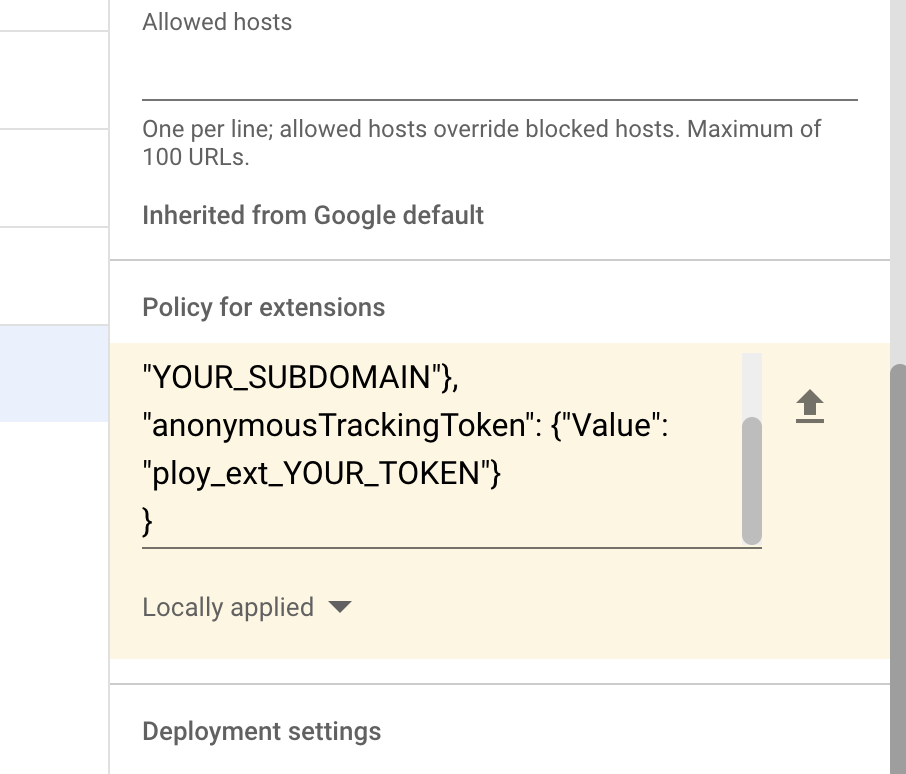
Hit save in the top right hand corner.
Lastly, scroll to the bottom and change ‘Update Url’ to be `installation URL’ and then hit Save again.