
Chrome via MDM on Mac
Deploy the Ploy Chrome extension to Mac devices using your MDM provider. This guide shows you how to download and deploy the configuration profile.
Before you begin: You'll need admin access to your MDM console and your Ploy tenant subdomain.
What you need
MDM admin access (Kandji, Jamf, Intune, etc.)
Ploy extension ID:
dffeldhekjdfdiodpemkejanlcjljbahYour Ploy subdomain – the part before
.ploy.appin your dashboard URL (e.g.,businessfromhttps://business.ploy.app)
Step 1 – Download the configuration profile
Get your pre-configured .mobileconfig file from the Ploy portal:
Go to Settings in your Ploy dashboard
Navigate to Portal Config
Click Download policy for Mac
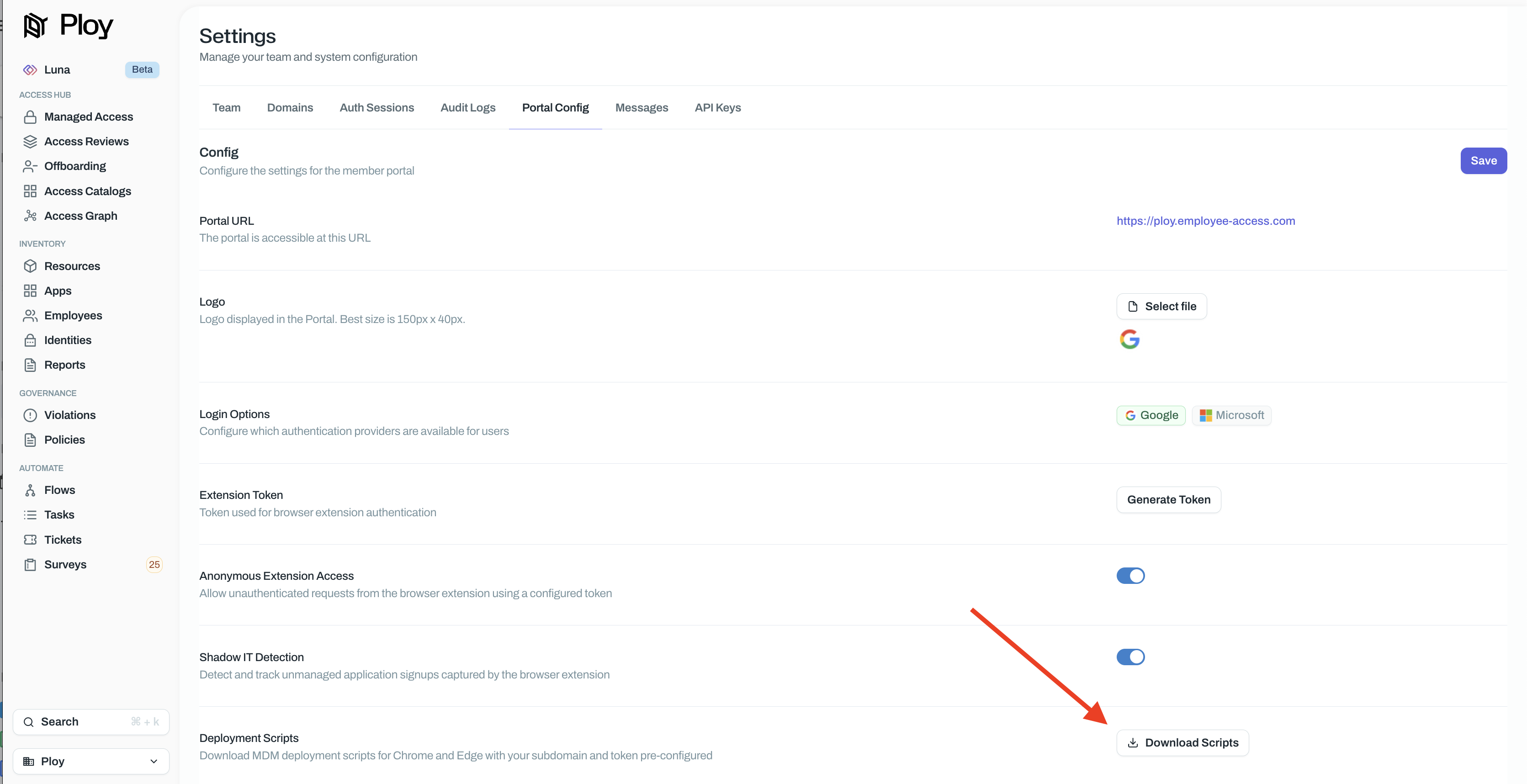
This profile automatically configures:
Force install of the Ploy extension
Extension pinning in the toolbar
Your tenant subdomain
Update URL for automatic updates
Step 2 – Deploy via your MDM
Upload the .mobileconfig file to your MDM and assign it to target devices:
Kandji: Library → Add New → Custom Profile → macOS
Jamf: Configuration Profiles → Upload
Assign to a test group first before rolling out company-wide.
Step 3 – Verify on test devices
On a test Mac:
Trigger an MDM sync
Quit and reopen Chrome completely
Confirm the Ploy icon appears in the toolbar
Visit
chrome://extensions– Ploy should show as "installed by your organization"Visit
chrome://policyand verify the subdomain and authentication token appear under the Ploy sectionClick the Ploy icon and sign in to verify access
Once verified on test devices, expand the rollout by updating your MDM assignment to include more users or departments.
Troubleshooting
If the extension doesn't appear:
Check the device received the profile (visible in macOS Settings → Profiles)
Ensure Chrome is fully quit and restarted
Verify the correct subdomain is configured in the profile