
Chrome via Intune on Windows
Deploy the Ploy Chrome extension to Windows devices using Microsoft Intune. This guide shows you how to configure a PowerShell script and Chrome policy to force-install the extension.
Before you begin: You'll need admin access to Microsoft Intune and your Ploy tenant subdomain.
What you need
Microsoft Intune admin access
Ploy extension ID:
onophcmaogkfmemihdicghifbojhhkikUpdate manifest URL:
https://ploy-chrome-extension.s3.amazonaws.com/extension/v2/update-manifest.xml
Step 1 – Download the Windows deployment package
Get your pre-configured PowerShell script from the Ploy portal:
Go to Settings in your Ploy dashboard
Navigate to Portal Config
Click Download policy for Windows
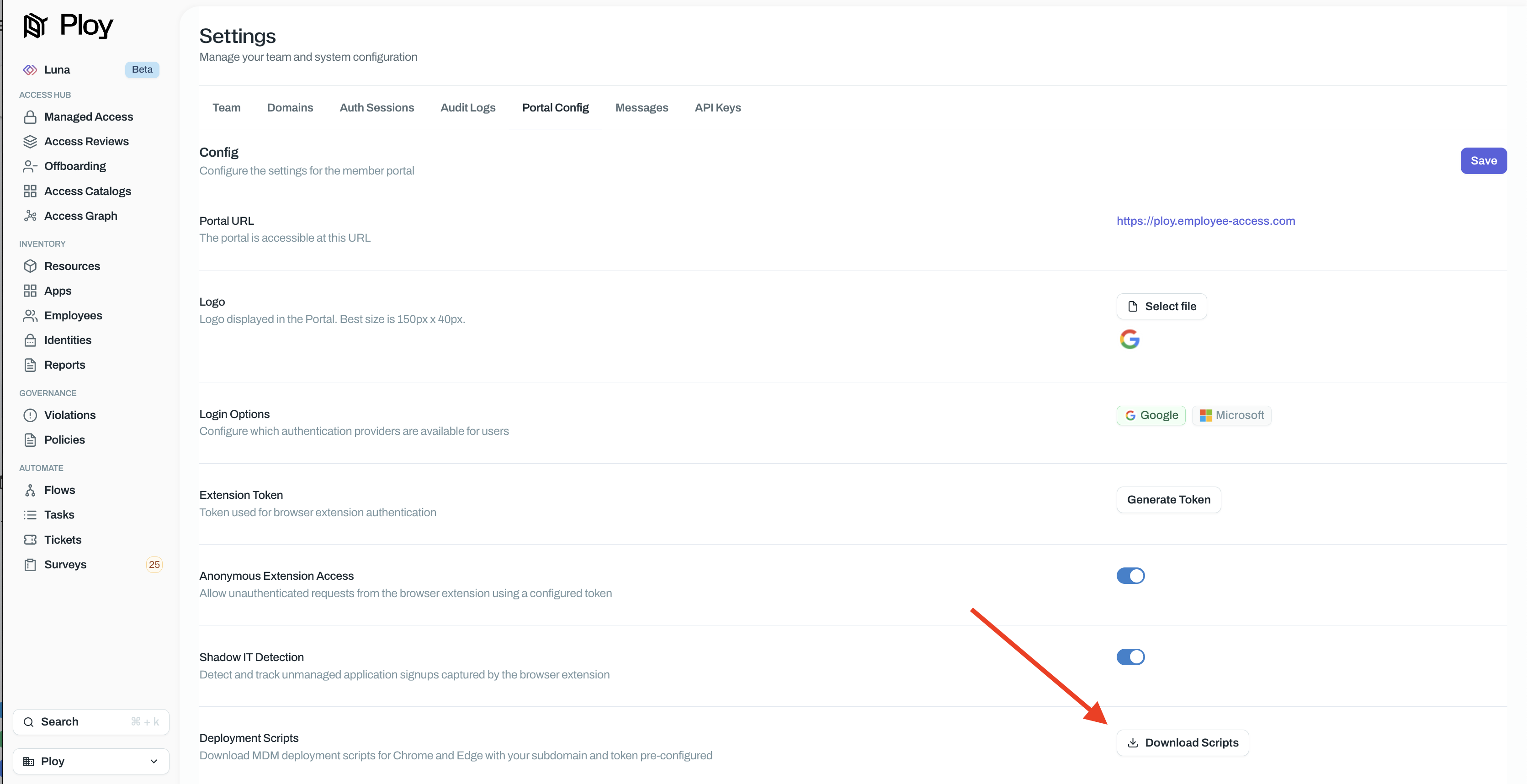
Extract the ZIP file and locate ploy-chrome-windows.ps1 – you'll use this in Intune.
Step 2 – Upload the PowerShell script to Intune
In the Microsoft Intune admin center, go to Devices → Configuration
Select Configuration scripts (under Manage)
Click + Add → Windows 10 and later
Give it a name like "Ploy Chrome Extension - Force Install"
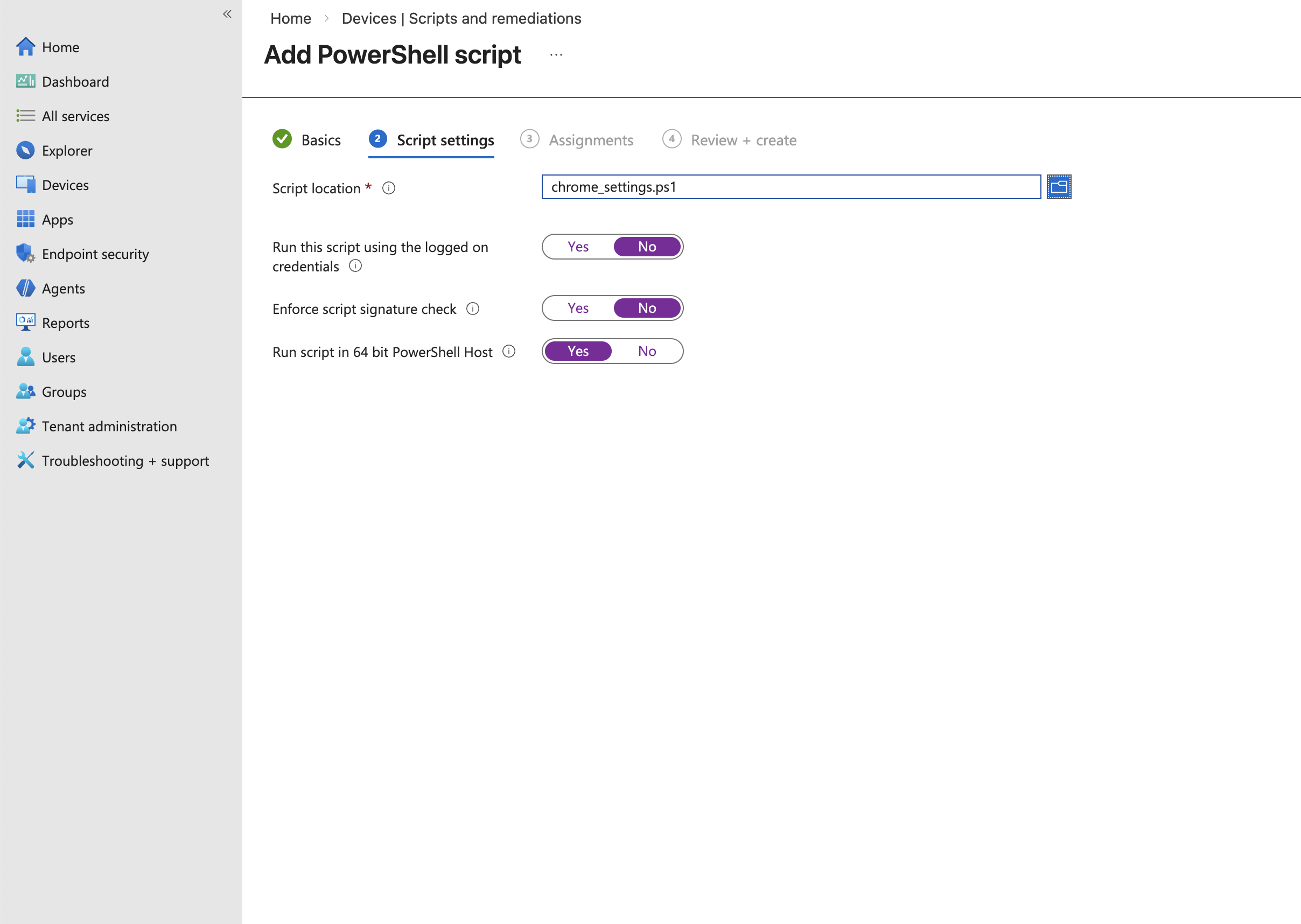
Upload the
ploy-chrome-windows.ps1fileAssign to a test group of devices
Step 3 – Create a Chrome configuration profile
Now configure Chrome to force-install the Ploy extension:
Go to Devices → Configuration
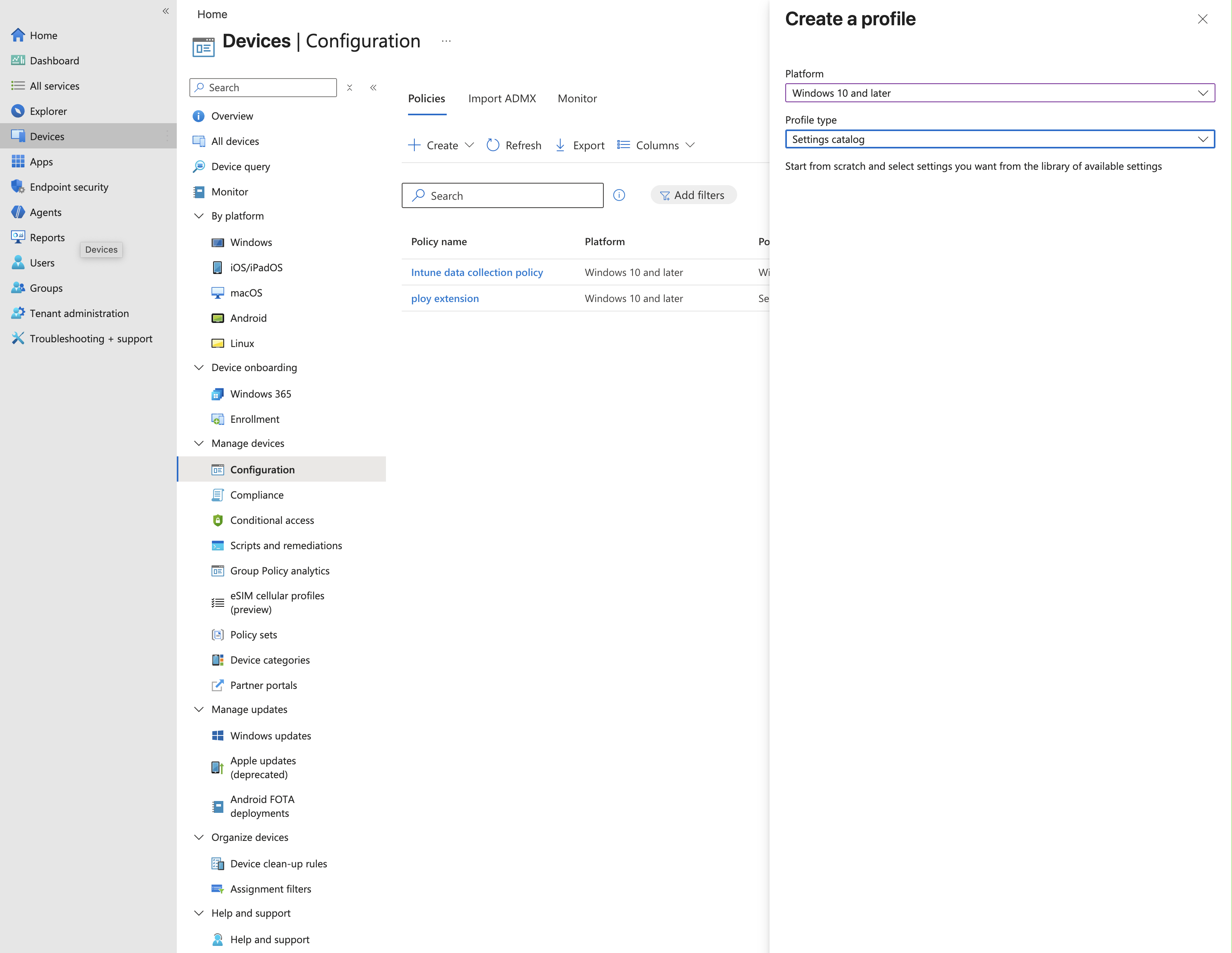
Click + Create → New policy
Select Windows 10 and later for platform
Name it "Chrome - Ploy Extension" and click Next
In Configuration settings, search for Chrome
Find and enable Configure the list of force-installed apps and extensions
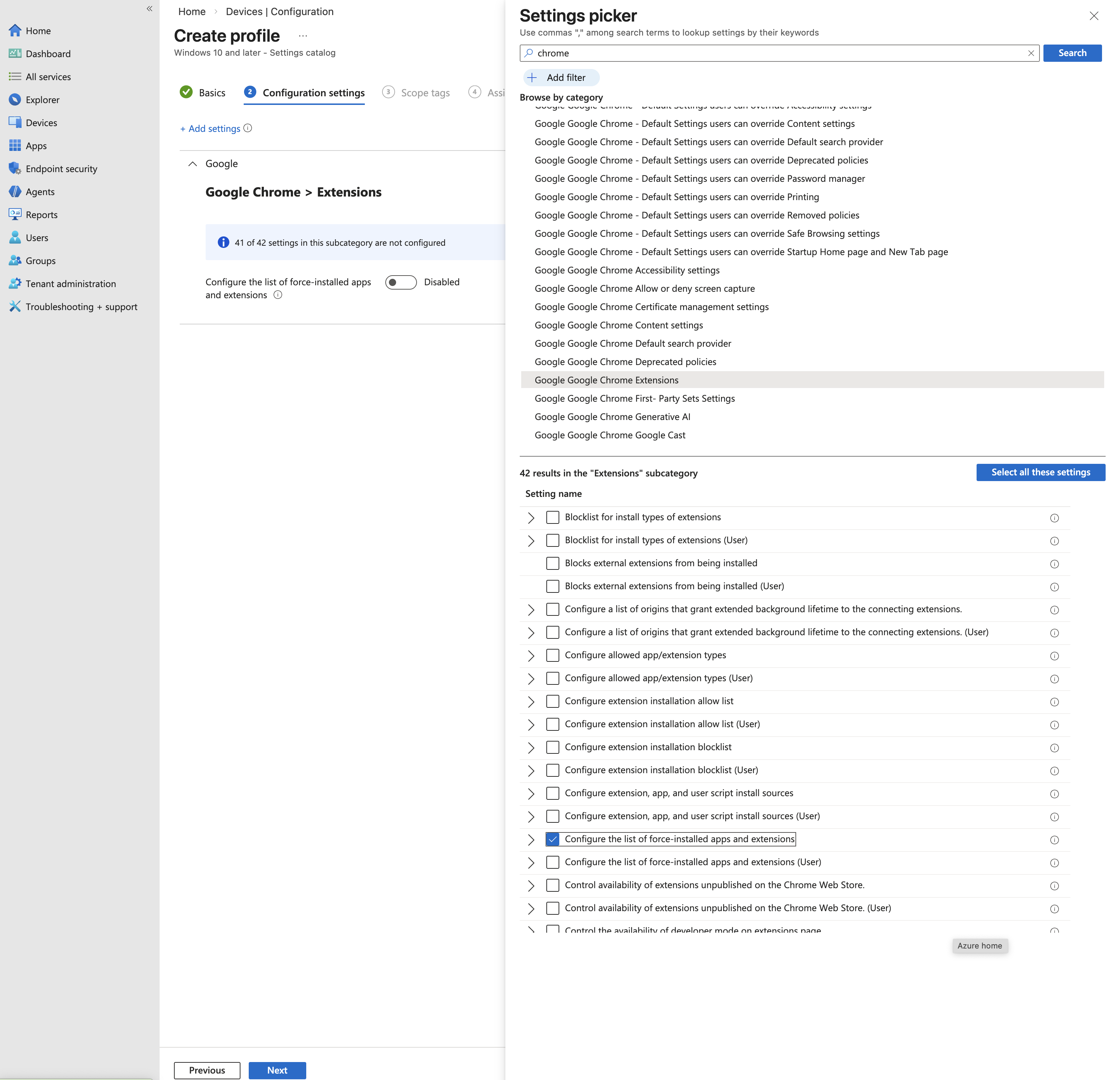
Click Show Options or +Add
Paste this value:
onophcmaogkfmemihdicghifbojhhkik;https://ploy-chrome-extension.s3.amazonaws.com/extension/v2/update-manifest.xml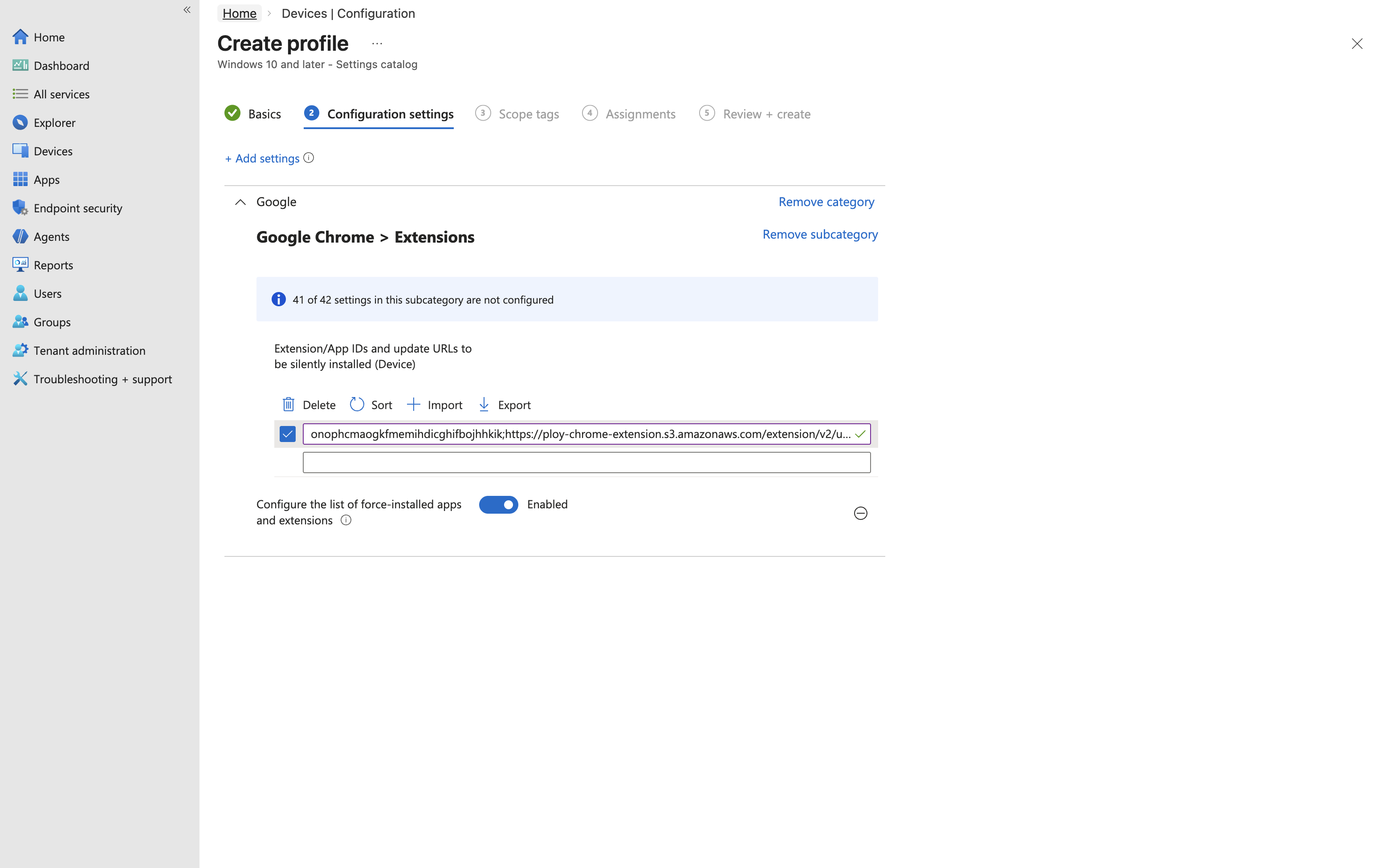
Click OK, then Next
Assign to the same test group you used for the PowerShell script
Review and create the policy
Step 4 – Verify on test devices
On a test Windows device:
Sync with Intune (Settings → Accounts → Access work or school → Sync)
Quit and reopen Chrome completely
Confirm the Ploy icon appears in the toolbar
Visit
chrome://extensions– Ploy should show as "Installed by your organization"Visit
chrome://policyand verify the subdomain and authentication token appear under the Ploy sectionClick the Ploy icon and sign in to verify access
Once verified on test devices, expand the rollout by updating your Intune assignments to include more users or departments.