
Bulk Revoke Access to Resources
The Bulk Revoke Access to Resources action removes access to multiple resources for a member in a single step. This is commonly used in offboarding workflows to automatically revoke licenses, groups, roles, or access packages when an employee leaves.
How to configure bulk revoke
Add the Bulk Revoke Access to Resources action to your workflow by clicking the + icon after your trigger or previous action.
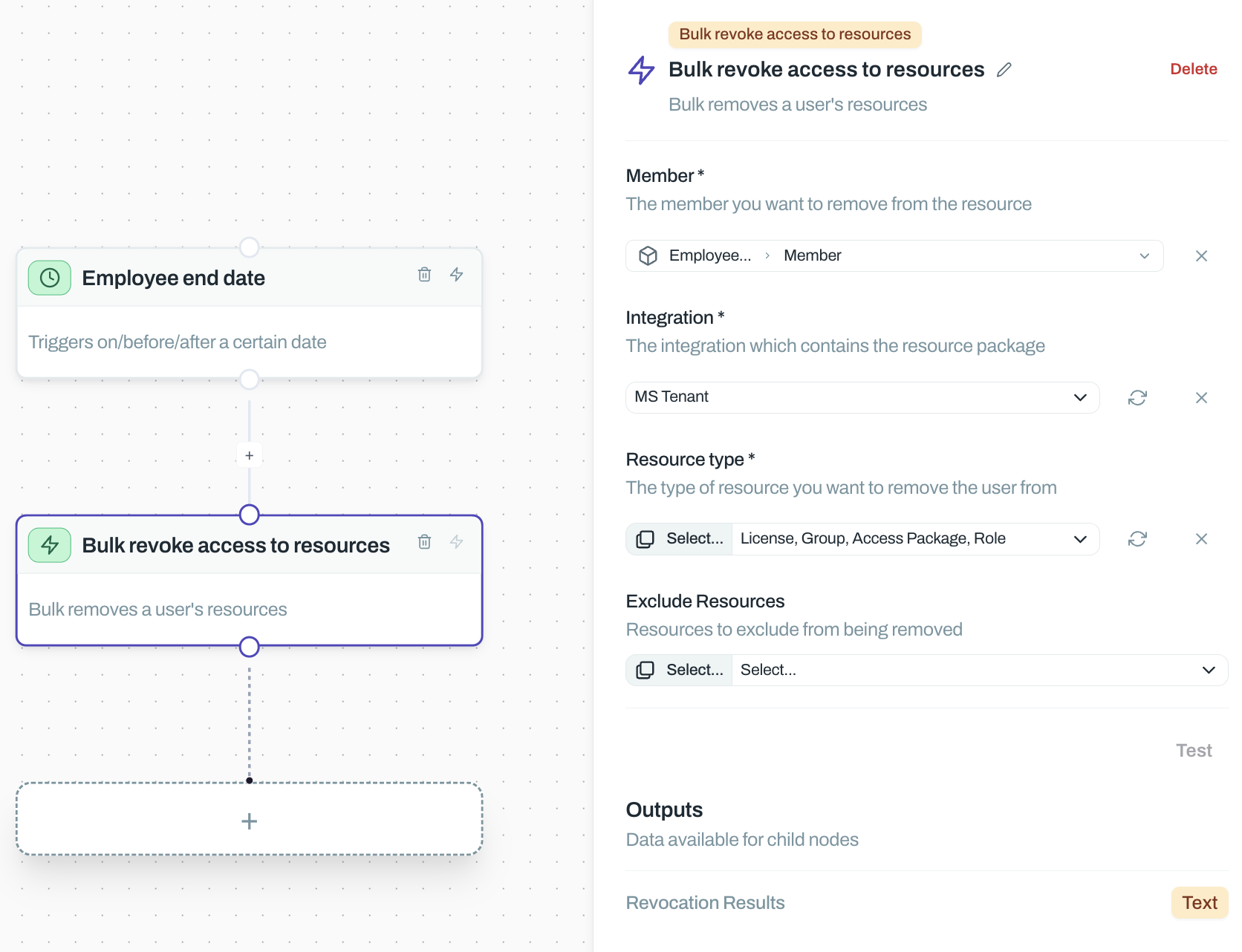
Configure the following fields:
Member – Select the user whose access you're revoking. Typically pulled from the trigger output (e.g., employee from an end date event).
Integration – Choose the integration where you're revoking access (e.g., MS Tenant, Okta, Google Workspace).
Resource type – Select what you're revoking: License, Group, Access Package, or Role. This determines which resources the action targets.
Exclude Resources – Optionally specify resources to skip during revocation. Use this to preserve critical access like admin accounts or persistent permissions.
Common use cases
Offboarding automation – Trigger on employee end date from your HRIS, then bulk revoke all licenses and groups across your stack. This ensures leavers lose access immediately without manual intervention.
Role changes – When an employee moves departments, revoke their old team's access packages in one step before granting new ones.
Compliance remediation – After an access review flags over-privileged users, use bulk revoke to strip unnecessary roles while preserving baseline access via exclusions.
Test your workflow with a single member first. Use the exclude resources field to protect critical access, then expand scope once you've confirmed it works correctly.
Outputs
The action outputs details about the revocation, including which resources were removed and any failures. Use these outputs in downstream actions like notifications or audit logs.
Related
See Grant Access to Resource for the reverse operation, or Introduction to Workflows to learn how triggers and actions work together.