FAQ - How do I enable the website Blocking feature?
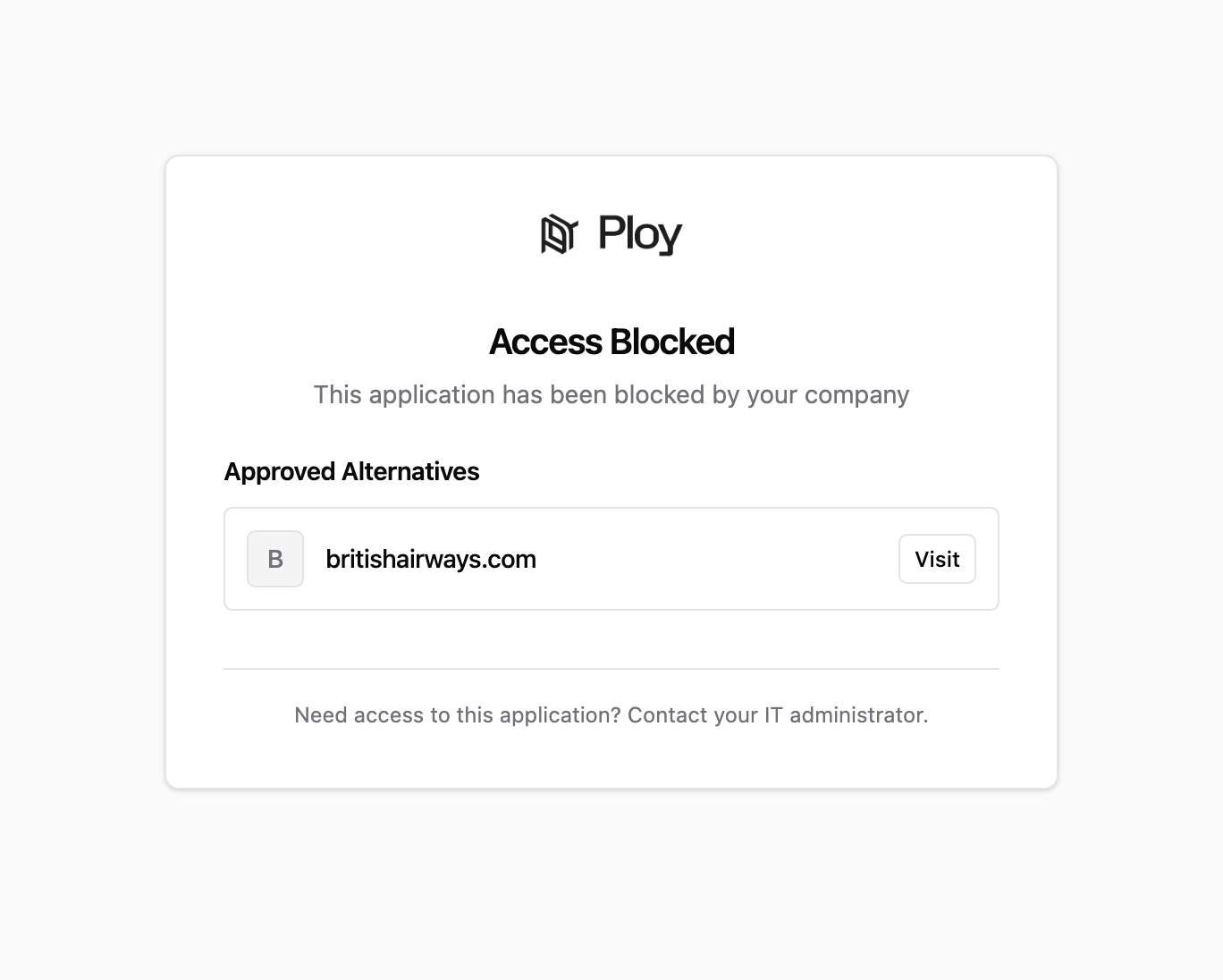
Block an app by opening it from the Apps page and changing its Status to Blocked. You can suggest alternative apps for members to use instead. Blocking is enforced on member devices by the browser extension, so the extension must be deployed before blocking takes effect.
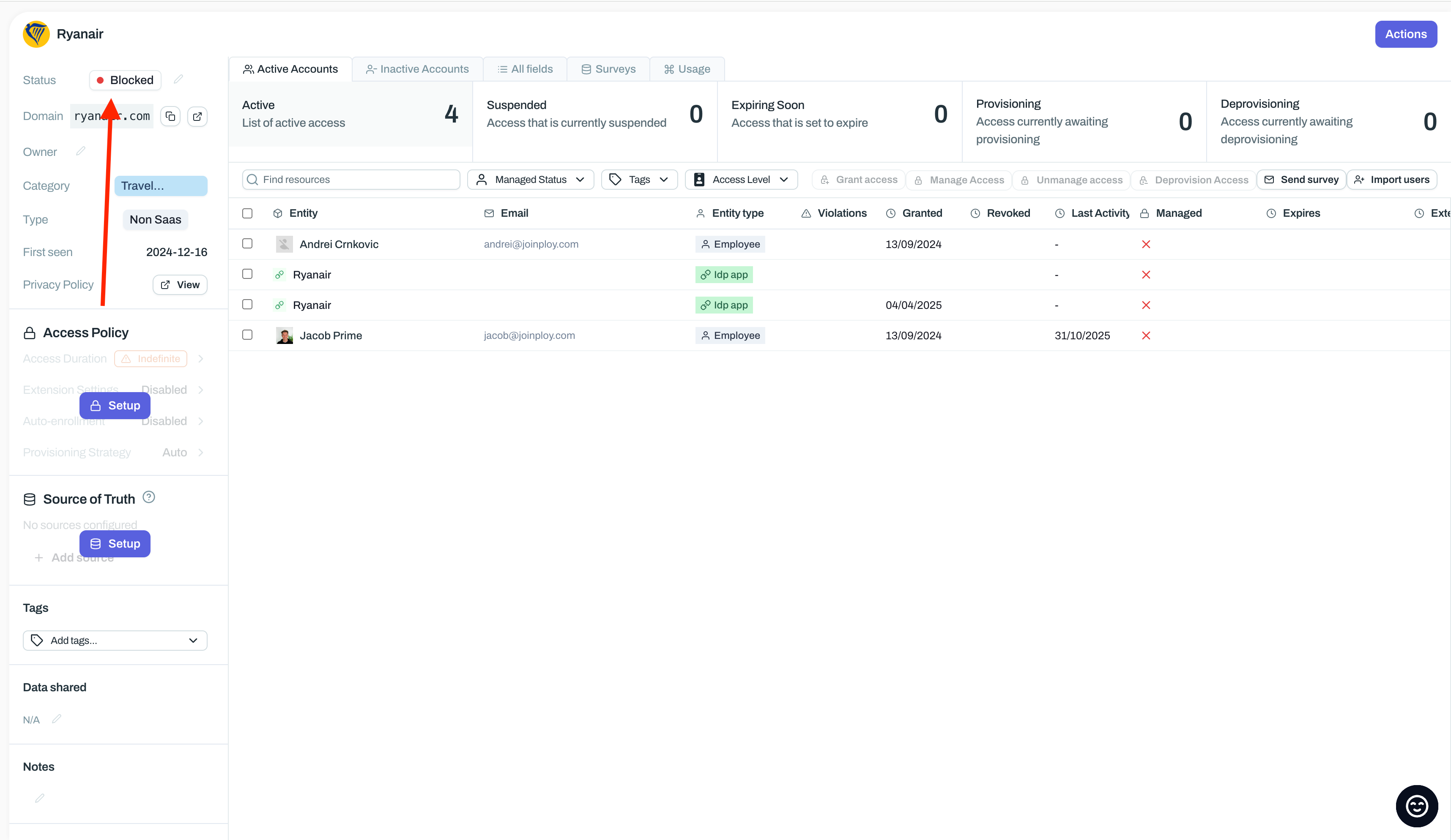
Block an app
You can block an app from either list: apps you manage, or unmanaged apps Ploy discovered on your network as Shadow IT.
Open the Apps page.
Find the app on the Managed or Unmanaged tab.
Open the app.
Set Status to Blocked.
Ploy confirms the change with App updated.
Add an alternative app
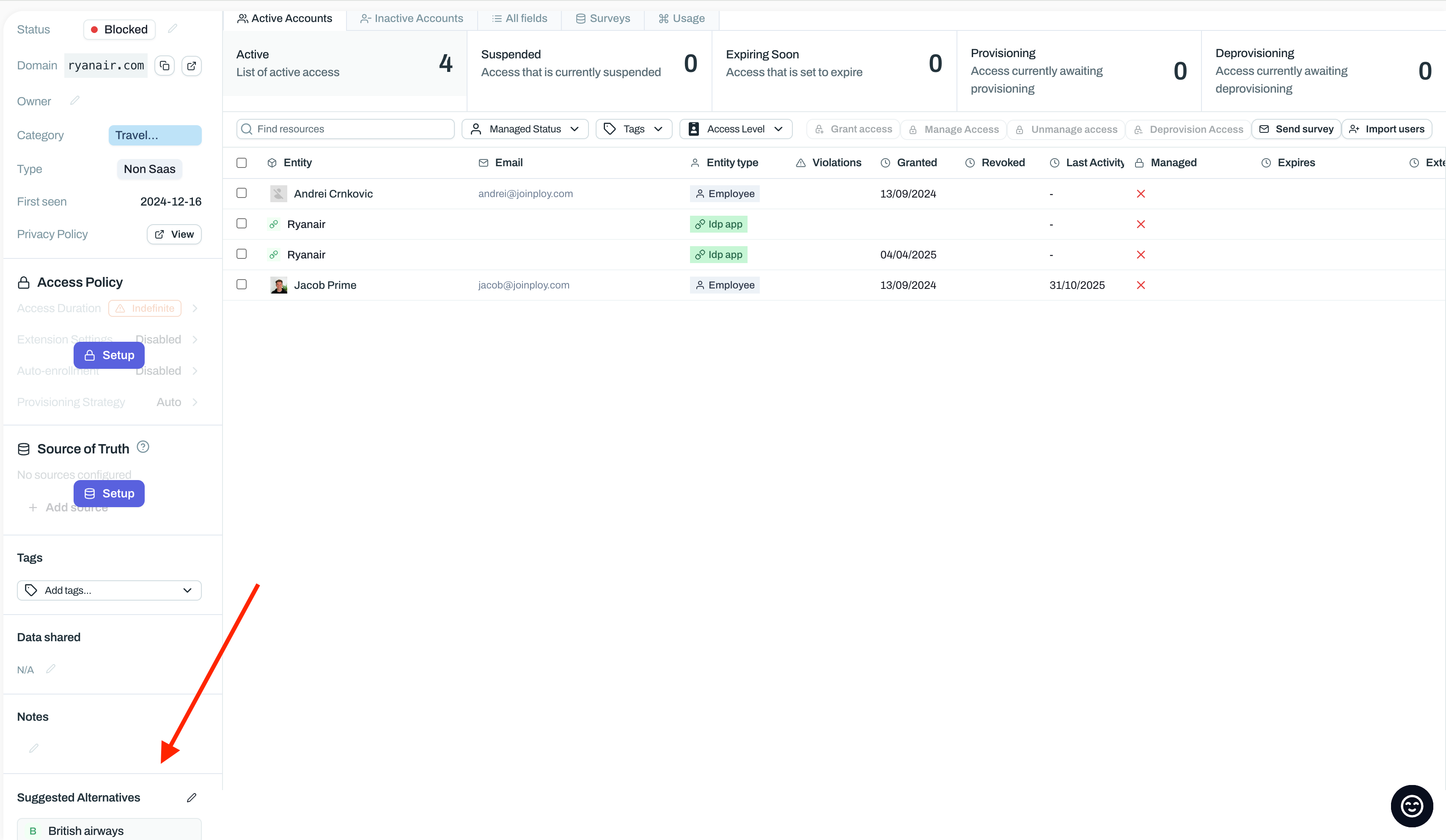
Suggest alternatives so members know what to use instead of the blocked app. Alternatives are available for apps with Blocked or Unsanctioned status, and they are suggestions only — Ploy does not redirect members away from a blocked app or open the alternative automatically.
Open the blocked app.
In the Suggested Alternatives section, click Edit alternatives.
Click Add alternative apps... and choose the apps you want to suggest.
Click Save.
An empty list shows No alternatives added yet. Remove alternative takes an app off the list.
Deploy the browser extension to enforce blocking
Blocking takes effect on member devices through the Ploy Browser Extension, so deploy it to your team's browsers before you block apps.
Follow the Browser Extension deployment overview to find the deployment guide for your browser, operating system, and device-management tool.