
Set up Microsoft Entra ID SAML single sign-on
Set up SAML SSO for the Ploy dashboard by configuring a SAML enterprise application in Microsoft Entra ID and pasting its federation metadata into Ploy. Ploy requires the SAML response to be signed with SHA-256, accepts unencrypted assertions, and supports IdP-initiated sign-in. The values below come from a working Entra configuration confirmed with Ploy support.
Before you start
Microsoft Entra admin access to create and manage an enterprise application.
The service provider values shown on the Single Sign-On (SSO) page in your Ploy organization settings (copied in the next section).
Copy the service provider values from Ploy
In Ploy, open the Single Sign-On (SSO) page in your organization settings. It shows the values to add to your identity provider:
Ploy field | Value |
|---|---|
Entity ID (Identifier) |
|
ACS URL (Reply URL / Assertion Consumer Service) |
|
Sign on URL (Login URL) |
|
Metadata URL |
|
Logout URL (SLO URL / Single Logout Service) |
|
The URLs on the page already contain your organization ID, so copy them from Ploy rather than typing them.
Create the enterprise application in Entra
Create a new enterprise application to represent Ploy in Microsoft Entra ID and open its SAML single sign-on settings.
Basic SAML Configuration
Fill in the Entra fields with the values from the Ploy page:
Entra field | Value |
|---|---|
Identifier (Entity ID) |
|
Reply URL (Assertion Consumer Service URL) | The ACS URL from Ploy |
Sign on URL | The Sign on URL from Ploy |
Logout Url (Optional) | The Logout URL from Ploy |
Attributes & Claims
Add these claims so Ploy receives each user's email and name. The emailaddress claim is the one Ploy requires: it reads the sign-in email from that attribute.
Claim | Type | Value |
|---|---|---|
Unique User Identifier (Name ID) (required claim) | SAML |
|
| SAML |
|
| SAML |
|
| SAML |
|
| SAML |
|
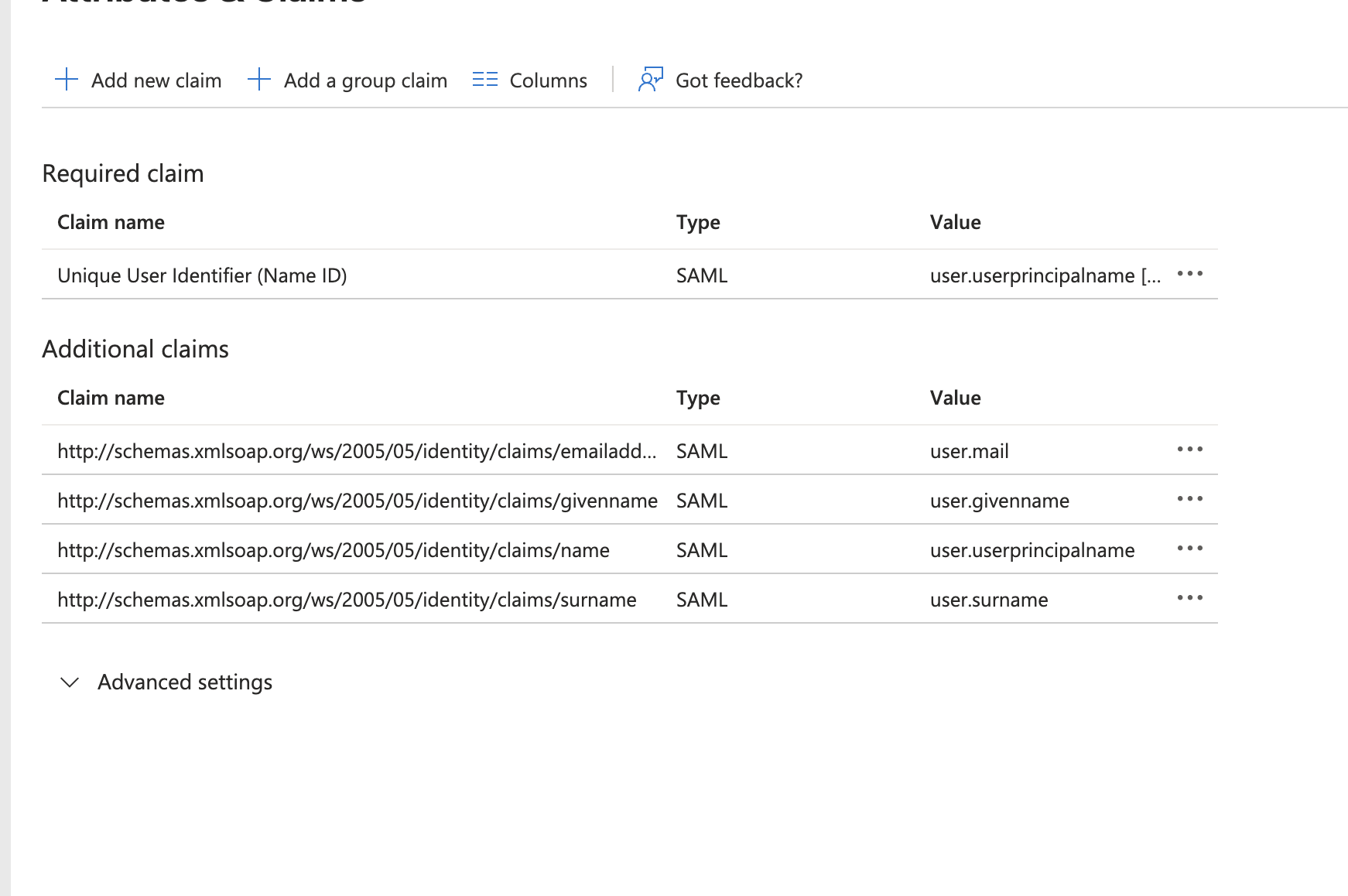
A login without a usable email attribute fails with "SAML authentication failed". Ploy can also read the email from an attribute named http://schemas.xmlsoap.org/claims/EmailAddress, emailaddress, or email, or from the Subject NameID when its format is urn:oasis:names:tc:SAML:1.1:nameid-format:emailAddress. The configuration above sends it in the emailaddress claim.
SAML Signing Certificate
Two settings on the certificate panel matter for Ploy:
Set Signing Option to Sign SAML response and assertion. Ploy requires the SAML response envelope to be signed; a signed assertion alone is not enough. Assertions may be left unencrypted.
Set Signing Algorithm to SHA-256. Ploy rejects SHA-1 signatures and digests.
Finish in Ploy
Download the Federation Metadata XML from Entra.
In Ploy, open the Single Sign-On (SSO) settings and paste the metadata XML.
Add your email domains. Each domain must be an internal domain of your organization, and a domain claimed by another organization is rejected.
Save the configuration. A new configuration starts with SSO enabled and Enforce SSO off by default.
Run Ploy's test action for SSO and complete a real sign-in through the sign-in URL it returns.
If the test sign-in fails, see Fix SAML single sign-on errors.