
Set up Okta SAML single sign-on
Configure a SAML 2.0 app integration in Okta, then paste its metadata XML into Ploy to enable SAML single sign-on for the Ploy dashboard. This guide covers the SAML app in Okta only: it is separate from Ploy's Okta API integration, which uses an API Services app to import your users.
Before you start
You need admin access to your Okta organization, and the service provider values from Ploy. In Ploy, open your organization settings and go to the Single Sign-On (SSO) page. It lists the values you copy into Okta, including your organization-specific URLs.
Create the app integration in Okta
In Okta, create a new app integration and choose SAML 2.0.
Name it something recognisable, for example Ploy.
Enter the general configuration values
On the app's SAML settings page, fill in the two values below. For Okta, the single sign-on URL is the ACS URL from Ploy, not the sign on URL.
Okta field | Value |
|---|---|
Single sign-on URL | Your ACS URL: |
Audience URI (SP Entity ID) |
|
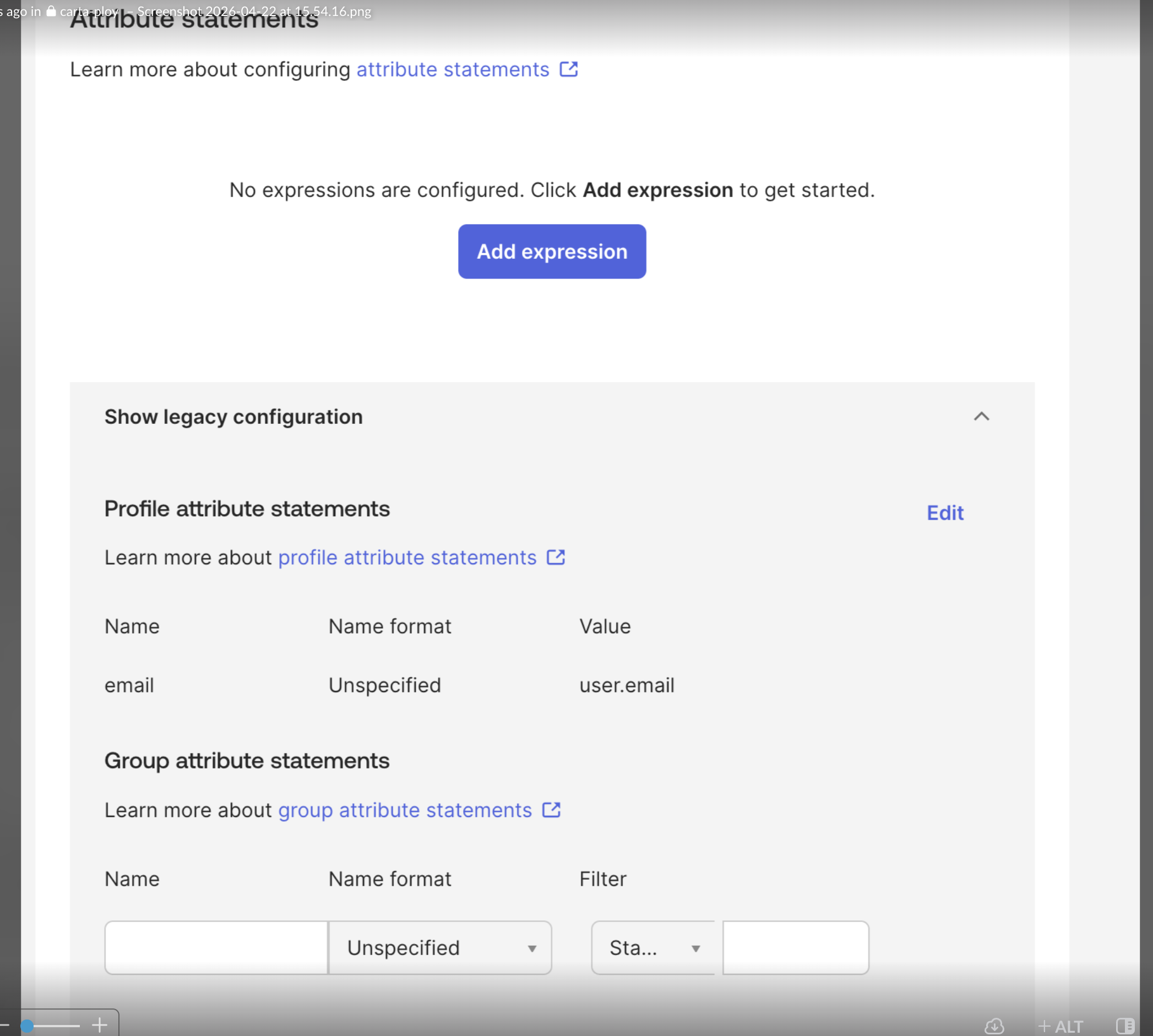
Leave Attribute Statements empty. The working configuration has no expressions configured.
Set the SAML settings
Set the remaining SAML options exactly as in this working configuration. Ploy requires the SAML response envelope to be signed: a signed assertion alone is not enough. Assertions may stay unencrypted, and IdP-initiated sign-in is supported.
Setting | Value |
|---|---|
Name ID Format | Unspecified |
Response | Signed |
Assertion Signature | Signed |
Signature Algorithm | RSA_SHA256 |
Digest Algorithm | SHA256 |
Assertion Encryption | Unencrypted |
SAML Single Logout | Disabled |
SAML Signed Request | Disabled |
authnContextClassRef | PasswordProtectedTransport |
Honor Force Authentication | Yes |
Assertion Inline Hook | None (disabled) |
Ploy rejects SHA-1 signatures and digests, so the SHA-256 algorithms above are required.
Add the required email attribute
This step is required. Without the legacy email attribute, sign-in fails with "SAML authentication failed".
Okta's Unspecified Name ID format does not give Ploy an email-format fallback, so Ploy needs the email as an attribute statement. Leave the regular Attribute Statements empty and use the legacy profile attribute instead:
Expand Show legacy configuration.
Under Profile attribute statements, add an attribute with:
Name:
emailName format: Unspecified
Value:
user.email
Download the metadata XML
Copy the identity provider metadata XML from Okta. Make sure it comes from the SHA-2 certificate, not the SHA-1 certificate: Ploy rejects SHA-1.
Assign the people who can sign in
Assign the people or groups who should sign in to Ploy through SSO to the app in Okta.
Connect Ploy and test
In Ploy, go to the Single Sign-On (SSO) page in your organization settings.
Paste the Okta metadata XML.
Add the email domains your users sign in with, at least one.
Save the configuration.
Test by completing a real sign-in through Okta.
For help with sign-in errors after setup, see Fix SAML single sign-on errors.