
Your first policy by hand
This is the full walkthrough for writing a Gets policy by hand: a standing grant that gives a group of people access to a resource and keeps it true from then on. The same screen writes every other effect too; only the middle sections change.
Write it
Go to Access, then the Policies tab, and select New policy. The builder opens as one screen in two columns. It is not a step wizard, and everything is visible at once.
Optionally type a Name. The placeholder is the live sentence Ploy is composing. Leave it blank and that sentence becomes the policy's name everywhere.
Fill in Who. Use Add filter to add a condition such as department is Engineering, and Add group to nest an and/or group. Leave it empty and the policy applies to Everyone. If your organisation has non-human identities switched on, the People / NHIs toggle sits at the top of this section.
In What, choose the effect Gets, then pick your targets in the search box marked "Search apps or entitlements". A target can be a whole app or one permission inside it. Chosen targets appear as removable chips above the picker.
Check the provisioning warning. If an amber strip appears saying a resource cannot provision access yet, either use Set up provisioning now or take that target out. Until provisioning exists, the policy grants nothing.
Set Revocation enforcement: Suggest only (Ploy records it and a person applies the change), Auto-suspend (suspended automatically, reversible) or Auto-revoke (removed automatically, the strongest setting). Then set Manual overrides, which is what happens if a person contradicts the policy by hand: Reverse, Flag or Log. Flag is preselected.
Read the right-hand column, labelled "Preview: how this reads everywhere". It shows the live sentence, how many people match today with a sample of their faces, an impact preview splitting them into what will change, what is already in place and what is blocked, an overlaps card if other policies cover the same people, and a "Check who this lands on" box where you can type one person's name and get "In scope" or "Out of scope".
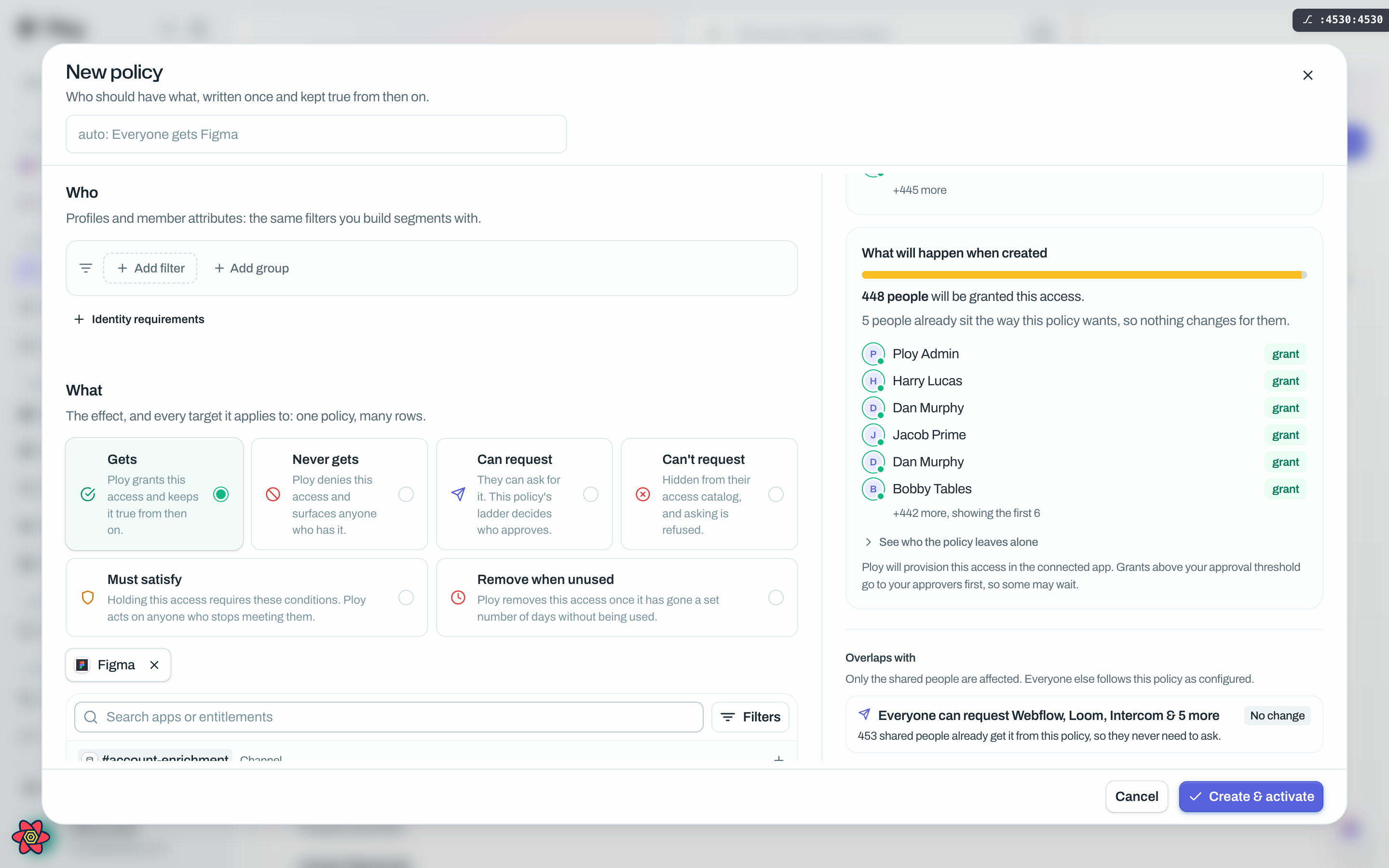
Select Create & activate. If the policy would act automatically on more people than the confirmation threshold, the footer turns amber and tells you the number. Choose Back to rethink, or Save for N people to go ahead.
What happens next
Saving triggers an immediate pass for this policy, and a sweep runs across your organisation every 15 minutes as a safety net, so drift such as a new joiner matching the filter is picked up on its own.
Anyone the policy matches who does not hold the app yet is owed that access. It is proposed for provisioning and shows on the coverage ledger as Awaiting until it lands. Awaiting means there is no access row yet, not that there is a request sitting somewhere for you to find.
Open the policy afterwards by clicking its card. The drawer shows what it is applied to, how many people it matches today, who actually gets something and why the rest do not, and any overlapping policies.
Good to know
Create & activate stays disabled until at least one target is chosen, and until the provisioning check has come back clean.
Picking several targets saves several policy rows shown as one card. Editing that card edits all of them; editing one target splits it out on its own.
A Gets policy starts provisioning as soon as it is active, so read the preview column before you press the button rather than after.
If nobody gets access after activation, the usual causes are: provisioning is not set up, a deny policy refuses those people, or they have no account on that app to grant on. The drawer names which one it is per person.