
Google Workspace
1. Go to the Integrations page within Ploy
Navigate to the integrations page in the bottom left of Ploy and select the Google Workspace integration.
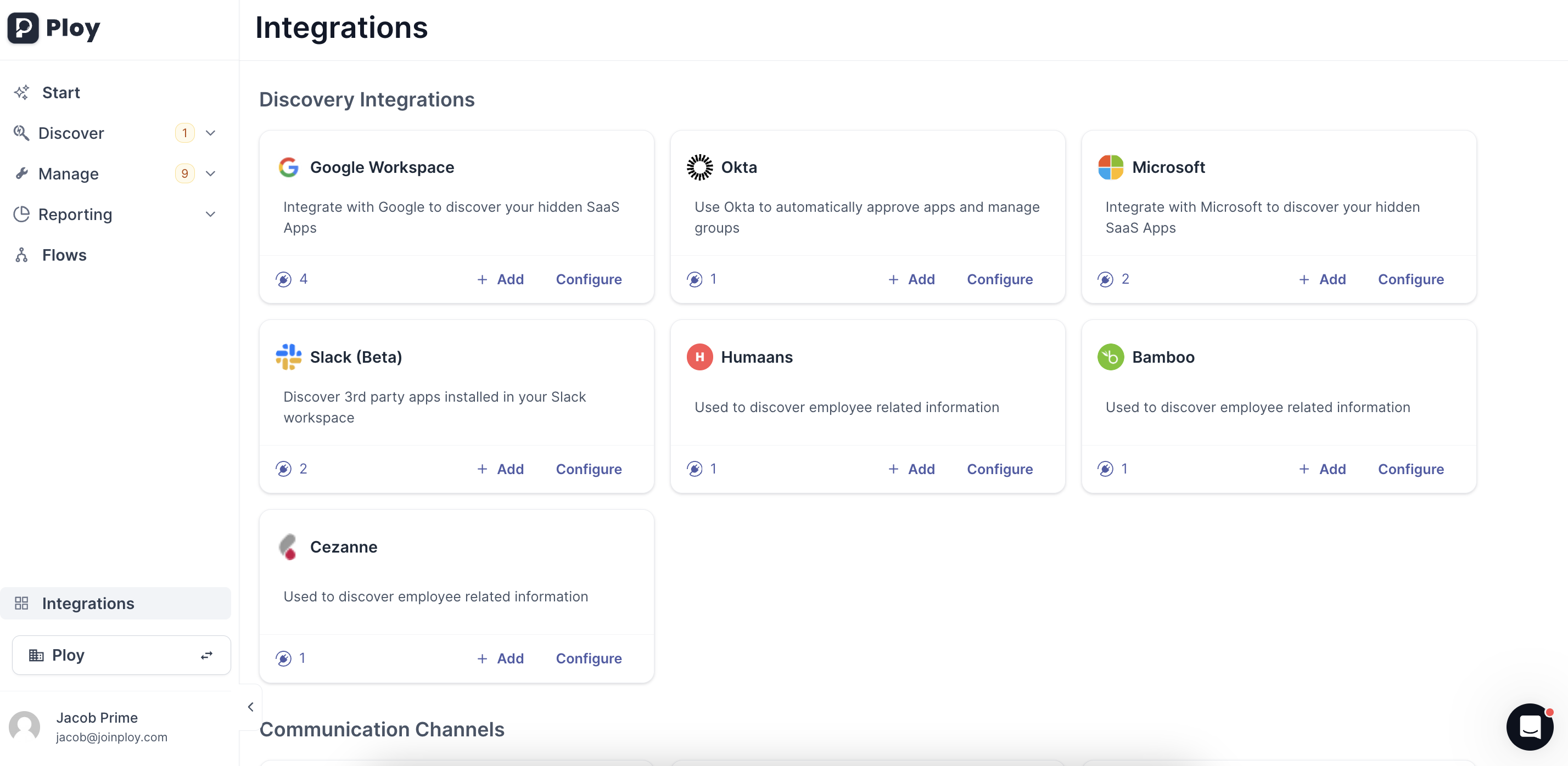
2. Configure your Google Workspace Integration
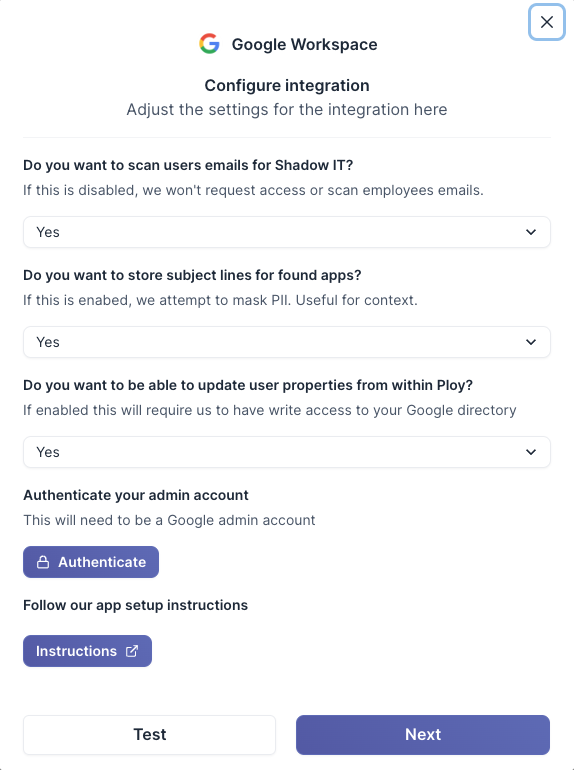
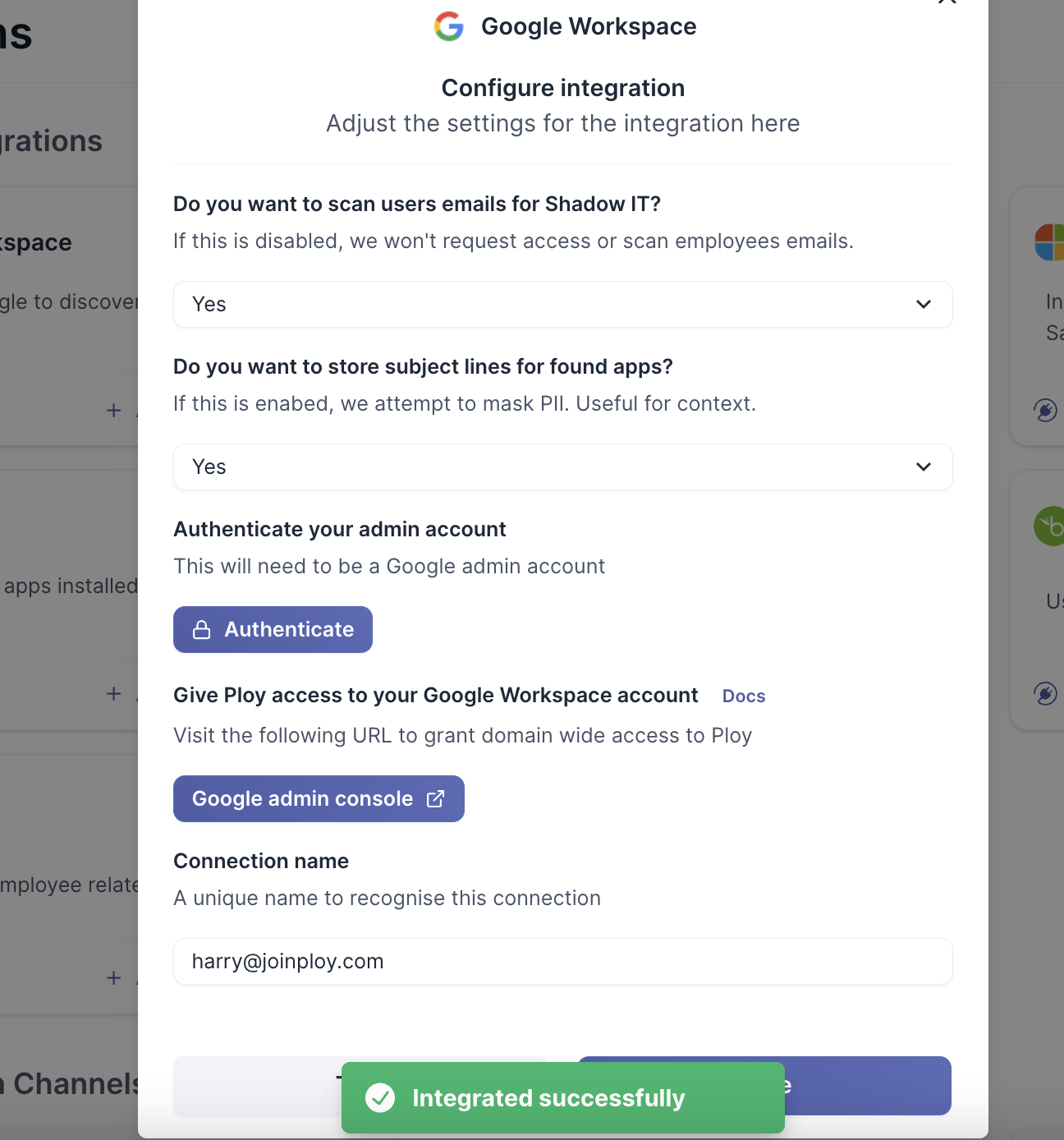
This is where you can configure the integrations for your integration with Google Workspace:
Do you want to scan users emails for Shadow IT?
Enabling this will allow Ploy to scan for subject lines of email addresses in your employees inboxes
Do you want to store subject lines for found apps?
This will store the subject lines in the dashboard so you can understand what has triggered the Ploy detection engine
Scopes required for Google Scanning
Scope | Description | Requirement |
|---|---|---|
| Scope for only retrieving users or user aliases. | Required |
| View audit reports for your G Suite domain. | Required |
| Scope for access to all application-specific password, OAuth token, and verification code operations. | Required |
| Read all resources and their metadata - no write operations. | Optional with email scanning enabled |
| Read and manage license assignments for users across your domain. | Required for license management |
3. Click "Authenticate"
This will prompt you to authenticate your google account.
4. Click "Authenticate with Google"
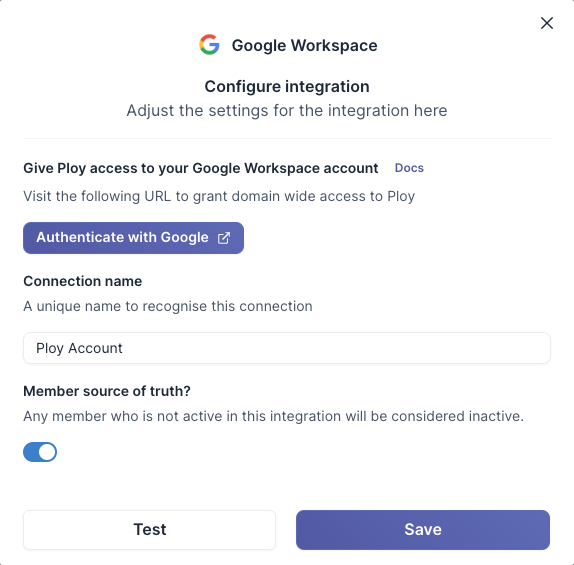
This will take you to your Google Admin console and request domain wide delegation scopes to be added to Google Workspace account based on the config you selected in Step 2
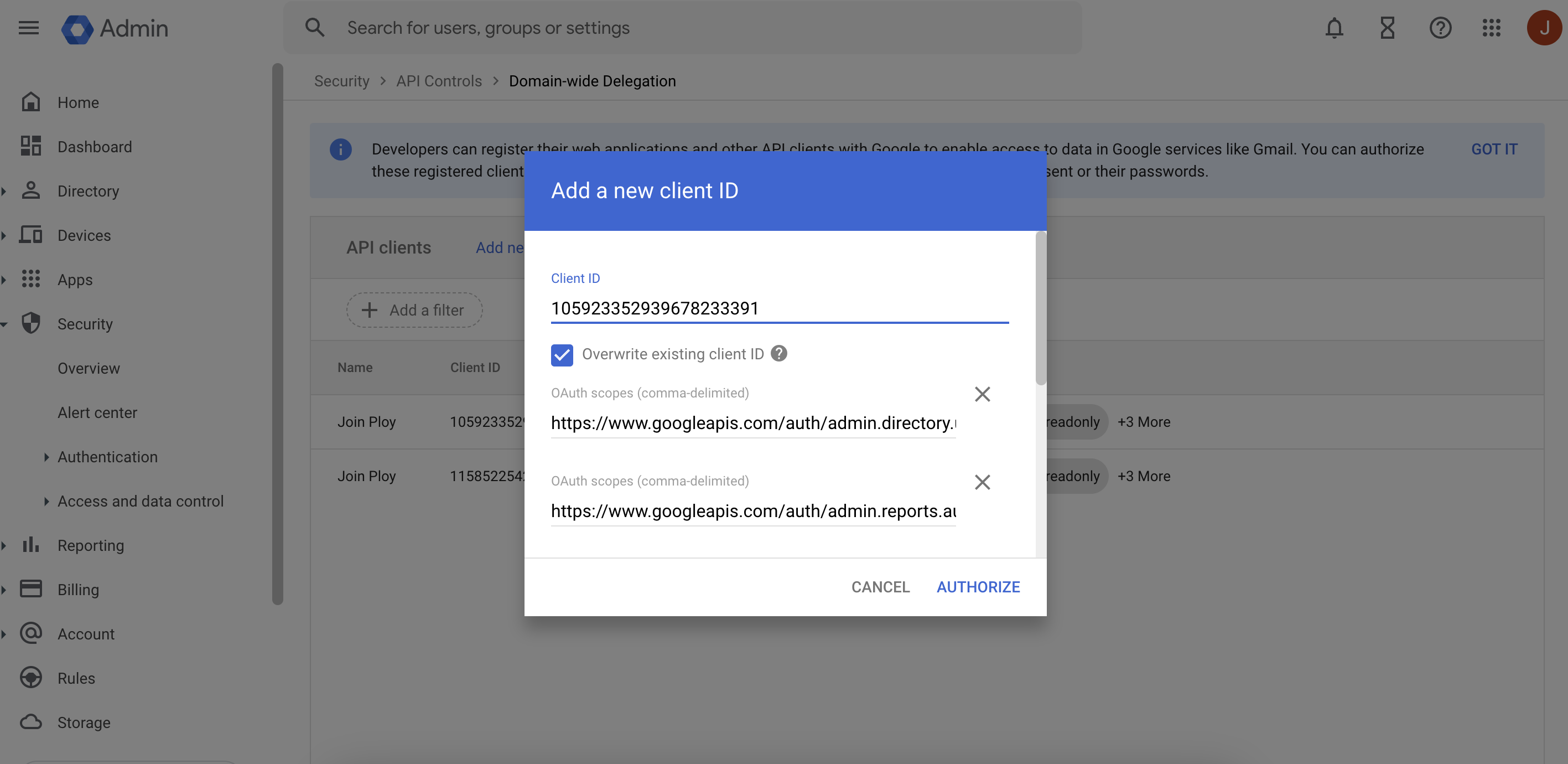
5. Click Test and then Save the integration
License Management Setup
To enable license scanning and management for Google Workspace, an additional OAuth scope must be added to your Domain-Wide Delegation configuration. This is a per-customer, one-time setup performed in each tenant's Google Workspace Admin Console.
Scope Required
License management requires the following scope:
https://www.googleapis.com/auth/apps.licensing
Add the OAuth Scope to Domain-Wide Delegation
Each customer's Google Workspace Admin Console has an allowlist of OAuth scopes that Ploy's service account is permitted to impersonate. License management requires this new scope.
Go to https://admin.google.com
Navigate: Security → Access and data control → API controls → Manage Domain-Wide Delegation
Find the row for Ploy's service account — the Client ID is
105923352939678233391Click the row, then click Edit
Append
https://www.googleapis.com/auth/apps.licensingto the comma-separated OAuth scopes listClick Authorize
Wait 1–2 minutes for propagation before testing
If Ploy is not already in the customer's Domain-Wide Delegation list, add a new entry with the Client ID above and include https://www.googleapis.com/auth/apps.licensing alongside the other Google integration scopes. This typically only applies to brand-new customers — existing Ploy integrations will already have a DWD row.
Auto-Licensing Constraint
Google Workspace can be configured to automatically assign licenses to new users based on rules. When this setting is enabled, Ploy cannot assign or revoke licenses via the Google API.
For Ploy to manage licenses on your behalf, auto-licensing must be disabled in your Google Workspace Admin Console. This makes sense — you cannot assign licenses arbitrarily via API calls if Google is already configured to assign them automatically.
To disable auto-licensing:
Go to https://admin.google.com
Navigate: Billing → Subscriptions
Click the license type you want Ploy to manage
Turn off Auto-assign licenses
Once disabled, Ploy can grant and revoke licenses for that license type through the integration.