For Ploy to send messages and notifications to employees through Microsoft Teams, you need to connect the Teams communications channel. This enables Ploy to deliver surveys, alerts, approval requests, reminders, task lists, and links directly in Teams conversations.
The Teams communications channel is separate from other Microsoft integrations you may have configured. Setting up Microsoft Entra ID or other Microsoft apps doesn't automatically enable Teams notifications—you need to complete this setup explicitly.
What Teams notifications are used for
Once connected, Ploy can send the following types of messages to employees via Teams:
Surveys — Access review surveys and questionnaires delivered directly in Teams
Alerts — Security and access alerts requiring attention
Approval requests — Access requests that need manager or owner approval
Reminders — Follow-up reminders for pending actions
Task lists — Action items employees need to complete
Links — Direct links to review campaigns, access requests, or other Ploy workflows
Messages appear in Teams as conversations with the Ploy bot, allowing employees to respond and take action without leaving Teams.
Prerequisites
Microsoft Teams admin access — You need permissions to upload apps to your organization's Teams app catalog
Your Microsoft tenant domain — Know your organization's Microsoft tenant domain (e.g., acme.com)
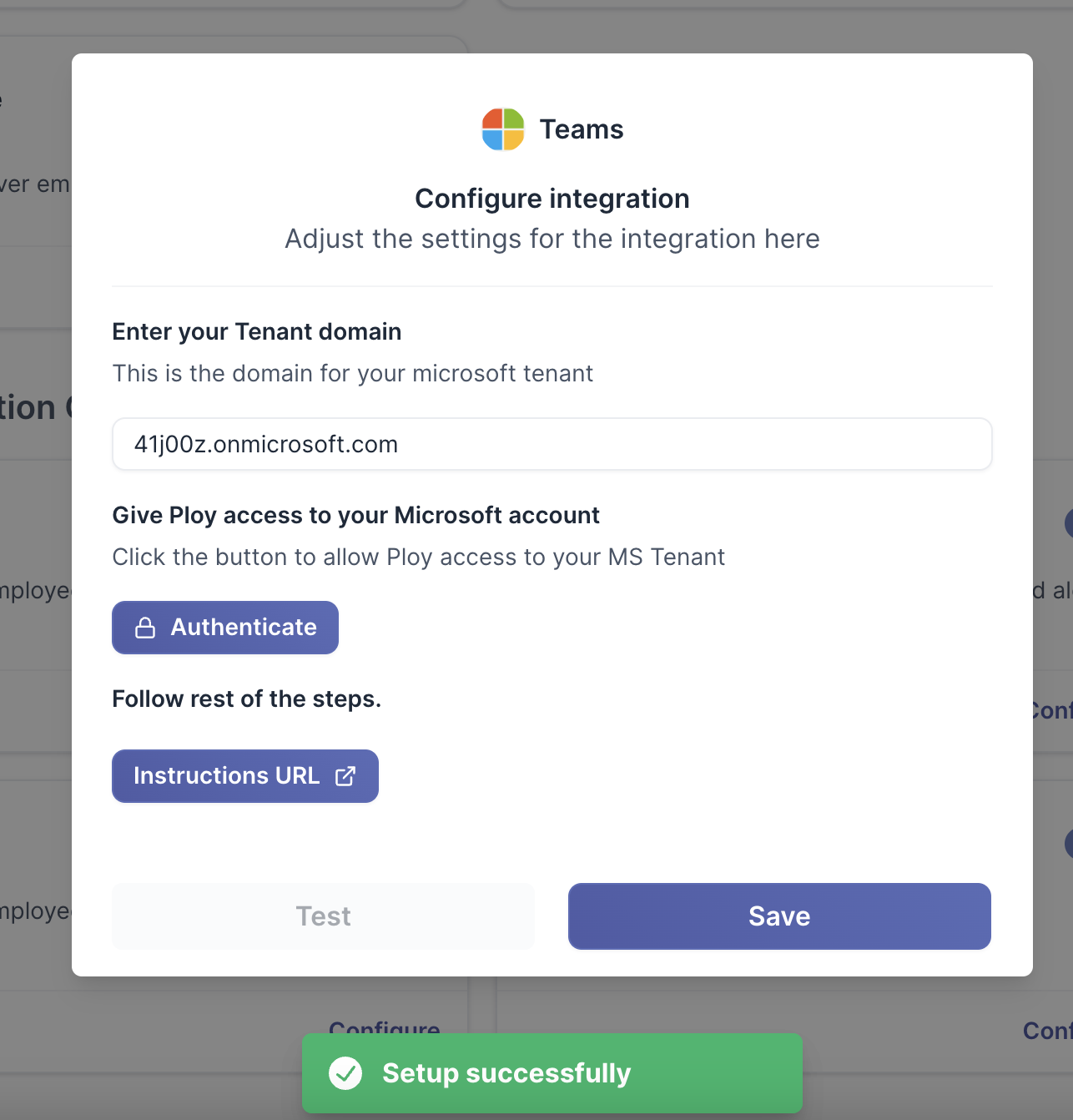
Enter your Microsoft tenant domain (e.g., acme.com)
Click authenticate to authorize Ploy access to your Microsoft tenant
Follow the Microsoft authentication prompts to grant admin consent
Step 2: Upload the Teams app to your app catalog
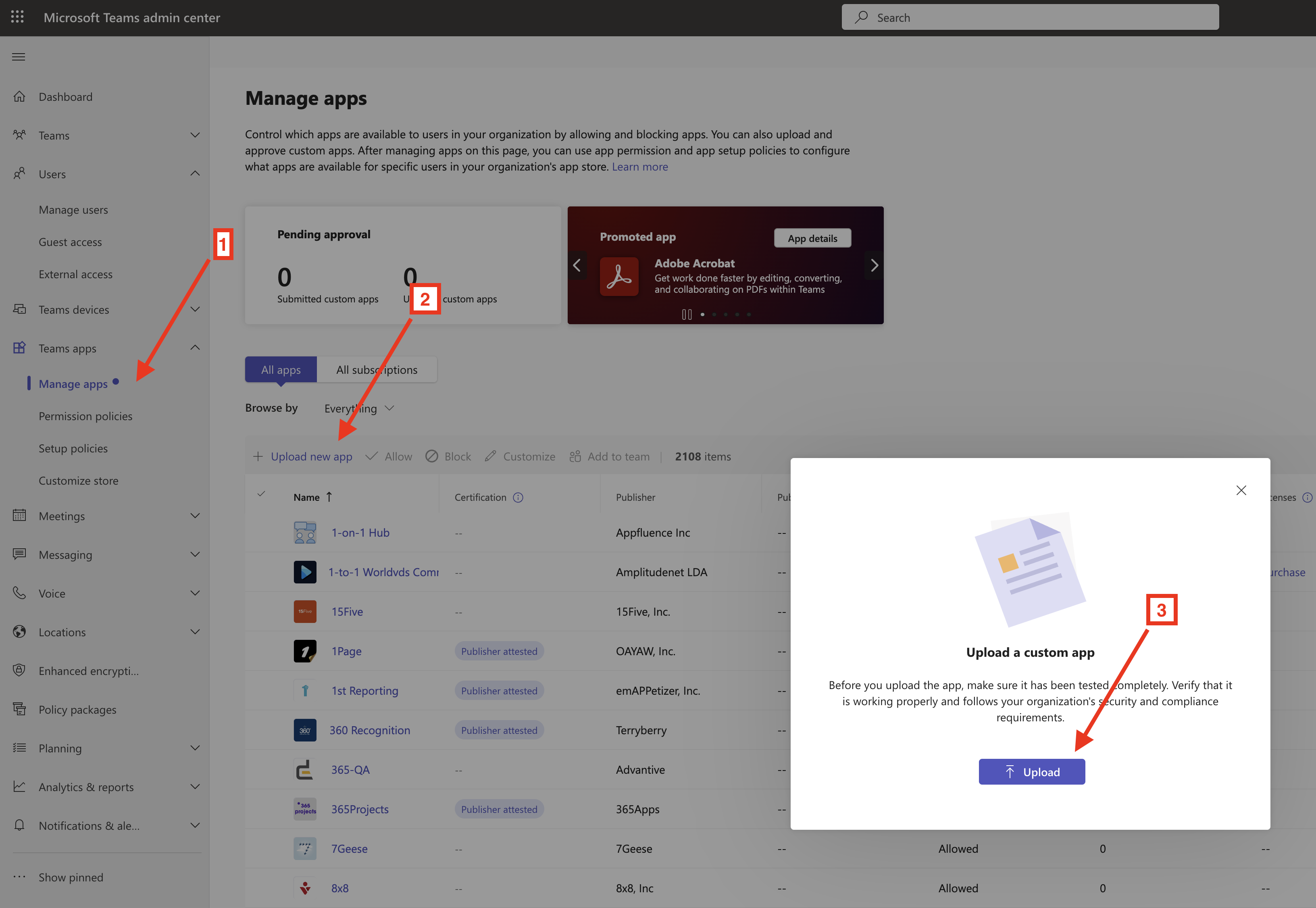
For Ploy to send messages to any team or user in your tenant, the Ploy Teams app must be uploaded to your organization's Teams app catalog. This enables just-in-time installation—Ploy can automatically install the app to a team or user when they receive their first message.
Download the app manifest zip file from Ploy (linked during setup)
Select Upload and choose the zip file you downloaded
Step 3: Test and save the connection
Return to your Ploy dashboard
Click test on the Microsoft Teams integration
Once the test succeeds, click save
The integration is now active and Ploy can deliver notifications to employees via Teams.
Permissions and security
This section sets out exactly what access the Teams integration has, so it can be shared with your security, change-control, or audit teams. The integration authenticates with client credentials, so the permissions below are granted once, at tenant admin consent, from the Azure app registration.
Microsoft Graph application permissions
Permission
What it's used for
Directory.Read.All
Resolve an employee's email address to their Teams user ID, look up individual users, and list teams and their channels for the channel picker
TeamsAppInstallation.ReadWriteForUser.All
Install the Ploy bot into a user's personal scope when they receive their first message
TeamsAppInstallation.ReadWriteForTeam.All
Install the Ploy bot into a team when it receives its first channel post
AppCatalog.Read.All
Resolve the Ploy app's ID in your organization's Teams app catalog
Bot Framework
Message delivery itself does not use Graph. The bot acquires a separate token for the Azure Bot Service (https://api.botframework.com) — configured on the bot resource, not in the Graph permissions blade — which is what creates one-to-one conversations and sends the messages.
Teams app manifest
The Teams app declares two platform-level permissions — identity and messageTeamMembers — which govern where the bot can be installed and that it can message team members. The bot operates in the following scopes:
personal — One-on-one conversations with individual users
groupchat — Messages in group chat contexts
team — Messages posted to team channels
What this integration does not grant
This is a send-only communications channel:
It grants no access to run or action access reviews — that is the separate Microsoft Entra ID integration
Directory access is read-only — it cannot create, modify, or delete users, groups, or teams
It does not read mailboxes, calendars, files, or Teams message history
The bot only operates in the personal, group-chat, and team scopes listed above, to deliver Ploy notifications
Because the Ploy Teams app lives in your own Teams app catalog, you control where it can be installed, and you can remove the app or revoke consent at any time.
Troubleshooting
Messages aren't being delivered to users
If users aren't receiving Teams messages, check the following:
App catalog upload — Confirm the Ploy app was successfully uploaded to your Teams app catalog
Authentication status — Verify the integration shows as connected and saved in your Ploy dashboard
Bot not in team — If Ploy tries to message a team where the bot isn't installed, it will attempt just-in-time installation. If this fails, manually add the Ploy app to that team via Teams
Test connection fails
If the test step fails during setup:
Verify you entered the correct Microsoft tenant domain
Ensure you completed the Microsoft admin consent flow
Confirm the app manifest was uploaded to the correct Teams admin account