
Updating your Microsoft Teams channel integration
Upload the updated Ploy app manifest to the Microsoft Teams admin center when a new version is released. This replaces the existing app version for your organization so employees continue receiving surveys, alerts, and approval requests via Teams.
This guide covers updating an existing Teams integration. If you are setting up Teams for the first time, see Set up Microsoft Teams notifications.
Prerequisites
Microsoft Teams admin access — You must have permissions to manage apps in your organization’s Teams app catalog
An existing Ploy Teams connection — The integration must already be configured in Ploy
Step 1: Download the updated manifest from Ploy
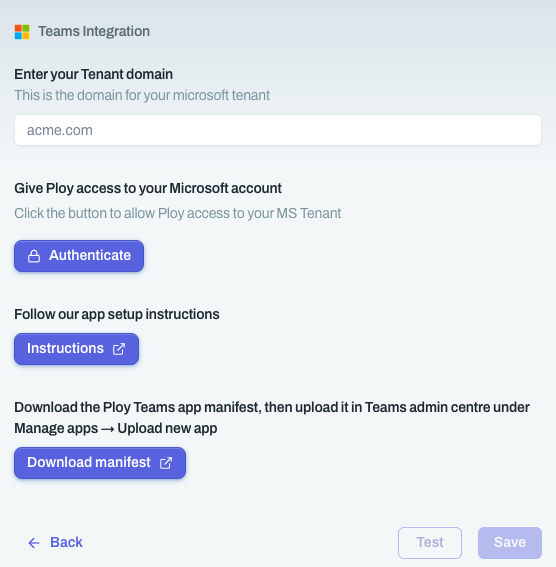
Go to Integrations in your Ploy dashboard
Select Channel, then choose Teams
Click Configure
Click Next
Click Download manifest to save the updated zip file
Step 2: Upload the new version in the Teams admin center
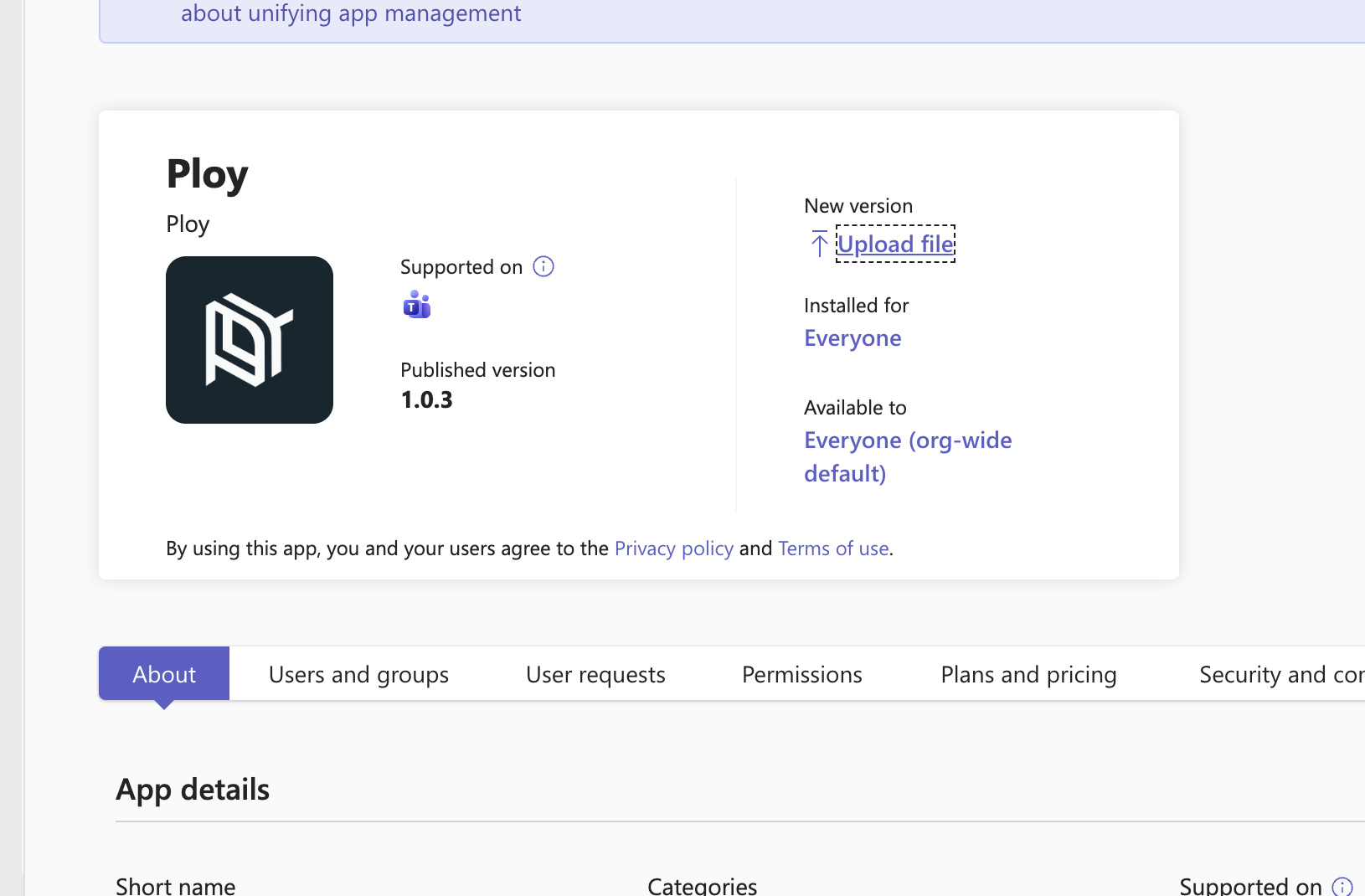
Navigate to the Microsoft Teams admin center
Find the Ploy app in the app list
Click Upload file under New version
Select the manifest zip file you downloaded from Ploy and upload it
Step 3: Make the app available to everyone
After the upload completes, set the app availability so the update applies across your organization:
Under Available to, select Everyone (org-wide default)
Step 4: Wait for propagation
It takes a short time for Teams to propagate the updated app across your tenant. Once propagation is complete, the new version is active and Ploy will continue sending messages via Teams.
Related documentation
Set up Microsoft Teams notifications — Initial integration and app catalog setup
Enable Luna Slack messaging — Use Slack as an alternative channel